This article was prepared with AI assistance based on an analysis of the current Lumina Studio source code, existing Wiki content, and relevant workflows. It has been checked against the current version, but omissions or details that become outdated may remain as the software evolves. If you find an error or have a clearer explanation, example, or suggestion, please leave a comment on this page or propose an edit on GitHub.
Bitmap vs. Vector Images: What’s the Difference?
If you only remember one distinction:
- A bitmap records a grid of pixels, with each pixel storing its own color.
- A vector image records points, lines, curves, outlines, fills, and the instructions used to draw those shapes.
Neither format is inherently better. Photos, complex gradients, and digital paintings usually suit bitmap images. Logos, icons, text outlines, line art, and flat-color graphics usually suit vector paths. The right choice depends on what the source actually contains, how you plan to edit it, and which details matter in the result.
colored in. A vector image is more like a set of drawing instructions that says where to place points, how curves should run, and which areas should be filled.
Enlargement makes the difference easy to see
Both sides below use the same composition. The left side first converts it into a low-resolution pixel grid and then enlarges it. The right side keeps the original outlines and curves and redraws them at the same display size.
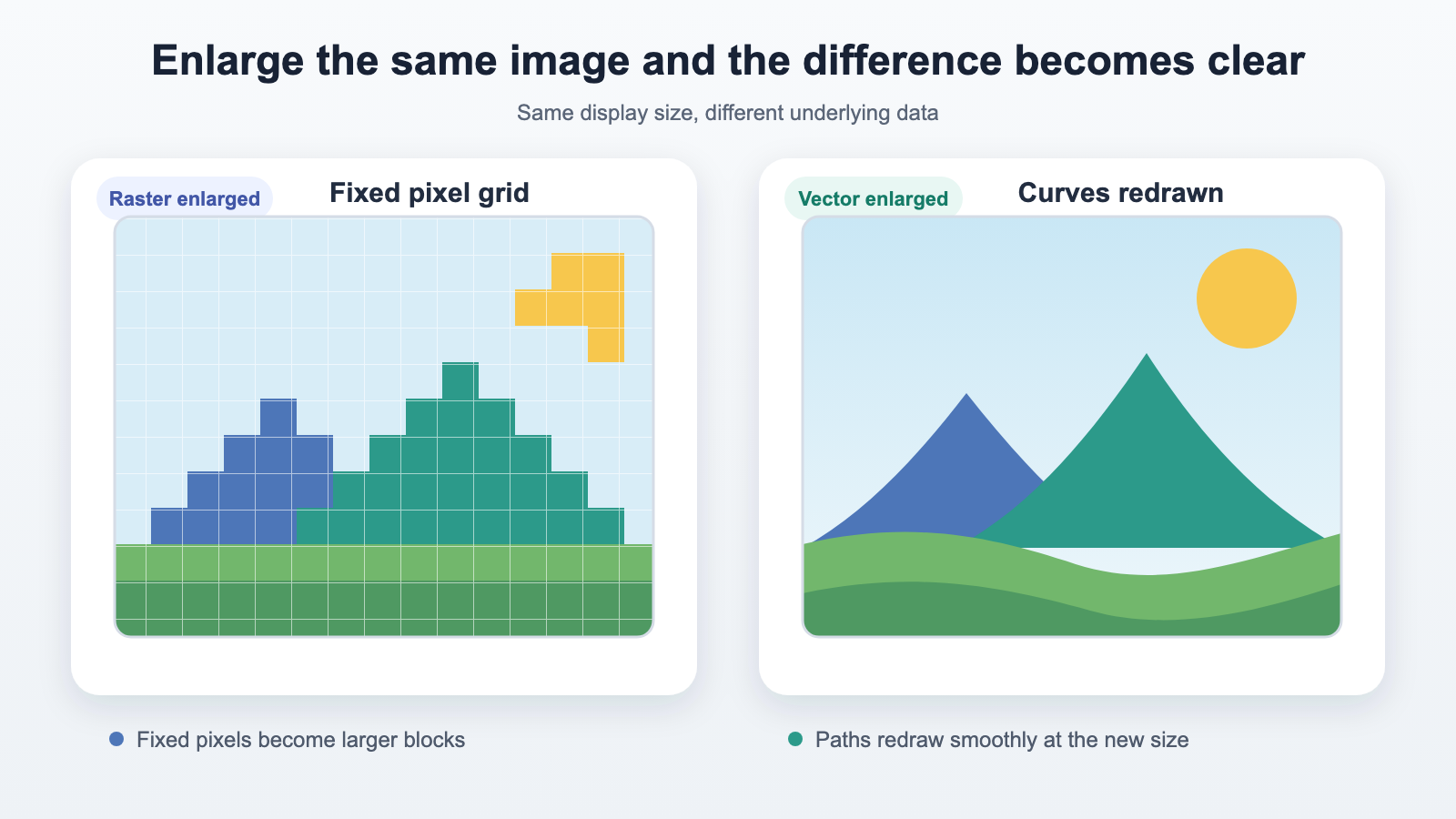
- Left: the number of pixels is fixed, so the enlarged grid becomes visible.
- Right: the software redraws the paths, keeping curves and diagonal edges smooth.
The screen still uses physical pixels to display both images. A vector file is not “pixel-free” once it reaches your monitor. Its advantage is that the source stores shape descriptions, so the graphic can be recalculated at a new size instead of only stretching the original pixel grid.
Bitmap and vector quick reference
| Comparison | Bitmap | Vector |
|---|---|---|
| Main data | Pixel colors in a fixed grid | Points, lines, curves, paths, outlines, and fills |
| When enlarged | Can become pixelated or blurry beyond the source resolution | Native paths can be redrawn at the new size |
| Best suited to | Photos, complex lighting, textures, gradients, digital painting, pixel art | Logos, icons, text outlines, line art, flat-color graphics |
| Common format clues | JPG/JPEG, PNG, WebP, HEIC/HEIF, BMP, TIFF | SVG, AI, EPS |
| Typical editing | Painting, selections, pixel-level retouching and color correction | Editing nodes, paths, strokes, and fills |
| Common Lumina workflow | Keep the original image and choose a workflow from the preview | Preserve native SVG paths whenever possible before import |
An extension is only a clue; it cannot tell you everything inside the file. PDF can
contain text, vector paths, and bitmap images at the same time. The SVG standard also
allows mixed vector and embedded raster content. A filename ending in .svg therefore
does not prove that every part of the file is a native vector path.
A more realistic comparison
This public-domain example enlarges the same graphic in vector and bitmap form. The vector portion stays smooth, while the bitmap portion reveals its pixel grid.
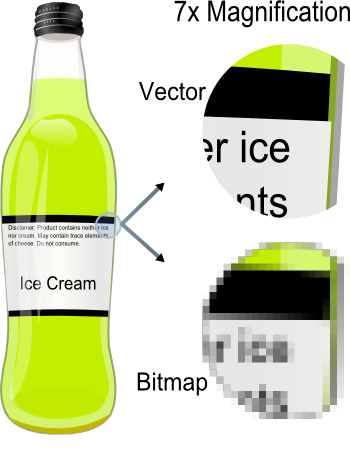
The image was created by Althepal, obtained from Wikimedia Commons, and released into the public domain by its author.
The example demonstrates different enlargement behavior. It does not mean every bitmap looks unclear at its intended size. A photograph with enough pixels for its display size can look very sharp. Problems usually appear when a fixed-resolution image is enlarged beyond its useful size or when the source never contained the required detail in the first place.
Which content usually suits each format?
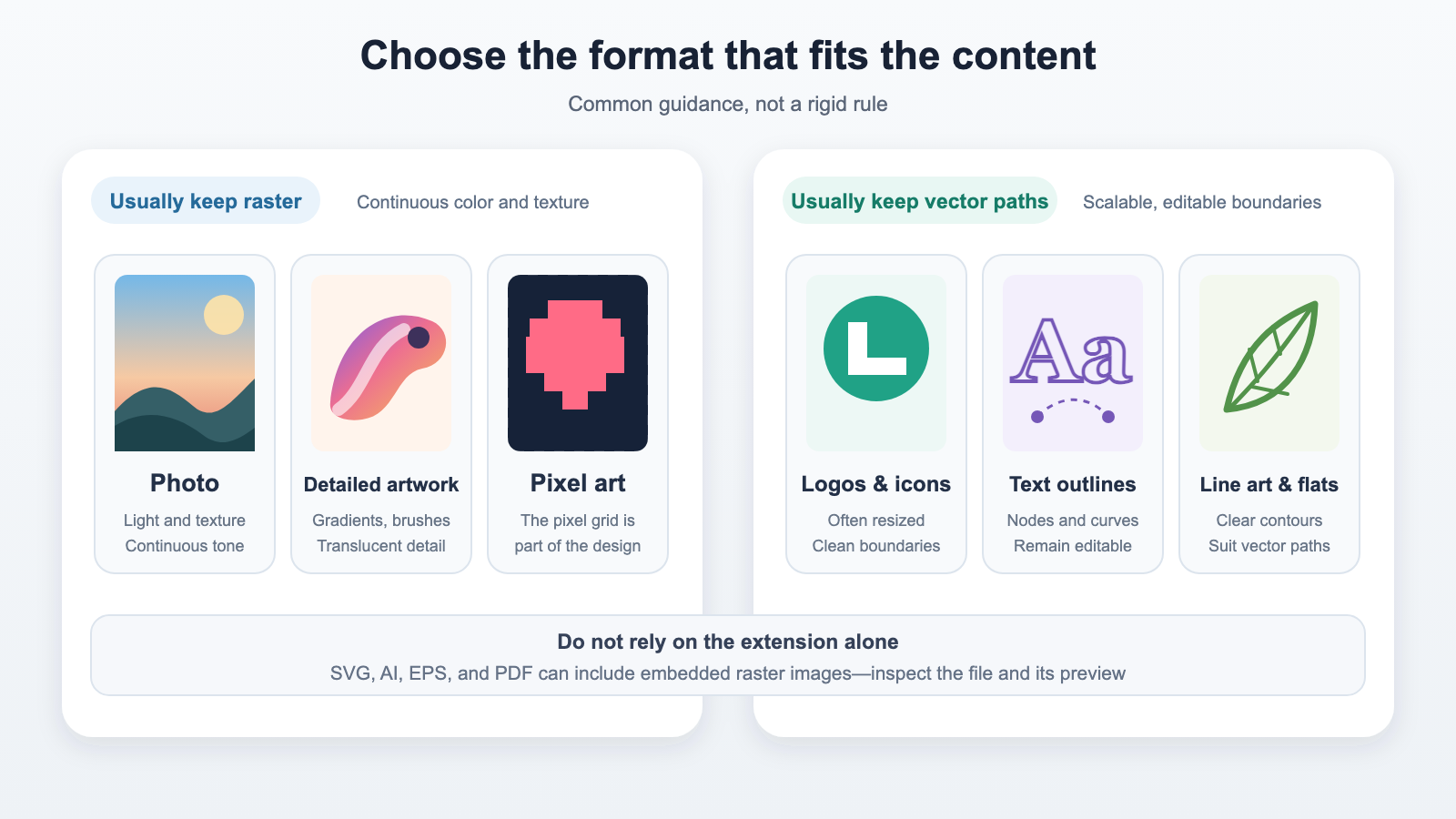
Content that usually stays bitmap
- Photos: faces, hair, skies, shadows, and material textures contain many continuous changes.
- Detailed artwork: brush texture, soft gradients, translucency, and small lighting details can be difficult to express with a small number of paths.
- Digital painting: many works are created directly on a pixel canvas.
- Pixel art: the grid itself is part of the design and should not be smoothed away automatically.
Content that usually keeps vector paths
- Logos and icons: these often need to be resized or recolored while keeping clean edges.
- Text outlines: converting type to paths preserves the letter shapes and reduces changes caused by missing fonts.
- Line art: paths make it easier to adjust line width, nodes, and corners.
- Flat-color graphics: clearly separated regions usually do not need a large pixel grid to describe their boundaries.
vector illustration can be extremely complex. The goal is to preserve the strengths of your source, not to force every file into one format.
Renaming an extension does not convert the file
Renaming picture.png to picture.svg does not turn pixels into paths. The internal
data remains unchanged, and software may refuse to open the file when the extension
no longer matches its actual contents.
Two other situations are easy to misunderstand:
- Putting a PNG inside an SVG container: the outer file is SVG, but it may only contain an embedded bitmap. Enlarging the canvas does not add pixels to that image.
- Saving an image as PDF: PDF is a container that can hold paths, text, bitmap
images, or a mixture. The
.pdfextension alone does not prove that its contents are vector.
To check whether a file contains editable paths, open it in a vector editor and try to select individual outlines, nodes, strokes, or fills. If you can only select one rectangular image and cannot edit the shapes inside it, the file probably contains an embedded bitmap.
Automatic vectorization is not lossless detail recovery
Image-tracing tools inspect pixels and decide where new outlines, color regions, and paths should be created. They redraw an interpretation of the bitmap; they do not recover original detail that is no longer present.
Automatic vectorization may:
- merge similar colors into one region;
- split a soft gradient into a limited number of bands;
- turn hair, paper texture, noise, and compression artifacts into many messy nodes;
- simplify or distort small text, thin lines, and sharp corners;
- create so many paths that the result becomes harder to edit and process.
Tracing is more likely to produce a useful result when the source is a logo, icon, or line drawing with clear boundaries and few colors. A photo or detailed painting will often look more natural as a bitmap. After tracing, zoom in and inspect edges, small text, closed regions, and the number of color areas rather than only checking whether an SVG was exported successfully.
but any incorrectly traced outlines scale with it. A file being scalable does not mean the missing source detail has been restored.
How should you choose in Lumina Studio?
Keep an untouched copy of the original file, then decide from the source content.
The source is a photo or detailed illustration
Keep the original JPG, PNG, WebP, or other bitmap version. In Lumina Studio, choose a generation workflow based on the actual preview, color regions, and detail you need. There is no need to trace an entire photo just to use an SVG workflow.
The source is a logo, icon, line drawing, or flat-color graphic
If you received a native SVG exported by the design software, keep it. Before import, check the canvas bounds, transparent background, closed paths, overlapping shapes, and whether text has been converted correctly. Do not export it to a low-resolution PNG and then trace that PNG back into SVG simply for consistency.
You only have a bitmap but genuinely need paths
Use an image-tracing tool to create a candidate SVG, then compare it beside the source:
- Are eyes, text, thin lines, and sharp corners still present?
- Has a continuous gradient become unnatural color banding?
- Did the background, shadows, or compression noise become unnecessary paths?
- Do the number of colors and path complexity suit the model you want to make?
- Does the Lumina preview better match your goal than using the original bitmap?
If both versions generate correctly, choose according to the model, your visual preference, and future editing needs. You do not need to choose a format only because the word “vector” sounds more advanced.
A quick check before you start
When you receive an image, work through these questions:
- Ask where it came from: is it a camera photo, an image downloaded from the web, or a logo/SVG exported from design software?
- Check it at the intended size: if it already looks clear, do not convert it only for theoretical scalability.
- Zoom in: a bitmap reveals pixels when enlarged; native vector paths still expose editable nodes in a vector editor.
- Inspect the contents: SVG, AI, EPS, and PDF can all contain embedded bitmap images.
- Preserve the original before converting: save traced or converted versions as new files so you can compare again later.
- Use the Lumina preview and your actual goal: check important edges, separate color regions, small text, and model complexity before choosing.
Common questions
Is PNG always a bitmap?
Yes. PNG stores pixel images. Even if the PNG was exported from a vector logo, the exported file has a fixed pixel count and does not retain the original editable paths.
Is every SVG a true, purely vector image?
No. SVG can contain native paths, embedded bitmap images, or both. The reliable way to check is to open the file in a vector editor and see whether its nodes, paths, strokes, and fills are individually editable.
Are vector images always clearer than bitmaps?
No. Native vector paths keep their edges smooth when resized, but they do not necessarily retain more real-world detail than a high-resolution photo. Fine texture, lighting, and subtle color variation are naturally suited to bitmap images.
Can converting a low-resolution image to SVG restore its detail?
Not automatically. The tool can only estimate outlines from the pixels it receives. It may make an edge more regular, or it may reproduce the jagged edge and compression artifacts. Missing eyes, letters, or texture do not return when the extension changes.
Does a smaller file mean it is probably vector?
No. A simple SVG logo can be small, but a complex path file can be large. Bitmap compression can produce a small file, while an SVG may embed a large bitmap. File size is information, not proof.
Should pixel art be converted to vector?
Usually not. The pixel grid is part of the visual language. When enlarging pixel art, nearest-neighbor scaling can preserve the square edges. Smoothing or tracing it may change the intended shapes.
Rights and content license
VectorBitmapExample.png was created by Althepal and is marked as public domain
on Wikimedia Commons. It retains its own source and rights status independently of
the Lumina Studio Wiki content license.
Unless otherwise stated, the original text, table, layout, enlargement comparison, and use-case diagram in this page are covered by the Wiki’s CC BY-NC-SA 4.0 content license. Software names, file formats, trademarks, and third-party material remain the property of their respective rights holders.
References
- Adobe: Raster vs. vector
- W3C: Scalable Vector Graphics (SVG) 2
- MDN: SVG
<path>element - Wikimedia Commons: VectorBitmapExample.png
This page introduces common image structures and workflows for new users. Different applications may apply different import rules for formats, transparency, color, text, clipping masks, and embedded content. Always check the preview and generated result from the current software version.
Submit feedback
Your feedback is sent privately to the Wiki maintainers and is not displayed publicly on this page.