This article was prepared with AI assistance based on an analysis of the current Lumina Studio source code, existing Wiki content, and relevant workflows. It has been checked against the current version, but omissions or details that become outdated may remain as the software evolves. If you find an error or have a clearer explanation, example, or suggestion, please leave a comment on this page or propose an edit on GitHub.
What Is the Difference Between Colour Count, Free Color, Objects, and Material Slots?
If you remember only one rule: these numbers describe different levels and do not need to match. An image can be quantised into 48 target colour groups, represented with four physical spools and five Color Layers, exported as a 3MF containing more than four objects, and finally mapped to four machine slots with unrelated numbers.
Do not infer the number of slicer objects from Quantize Colors, and do not assume project filament 3 must be loaded in AMS slot 3.
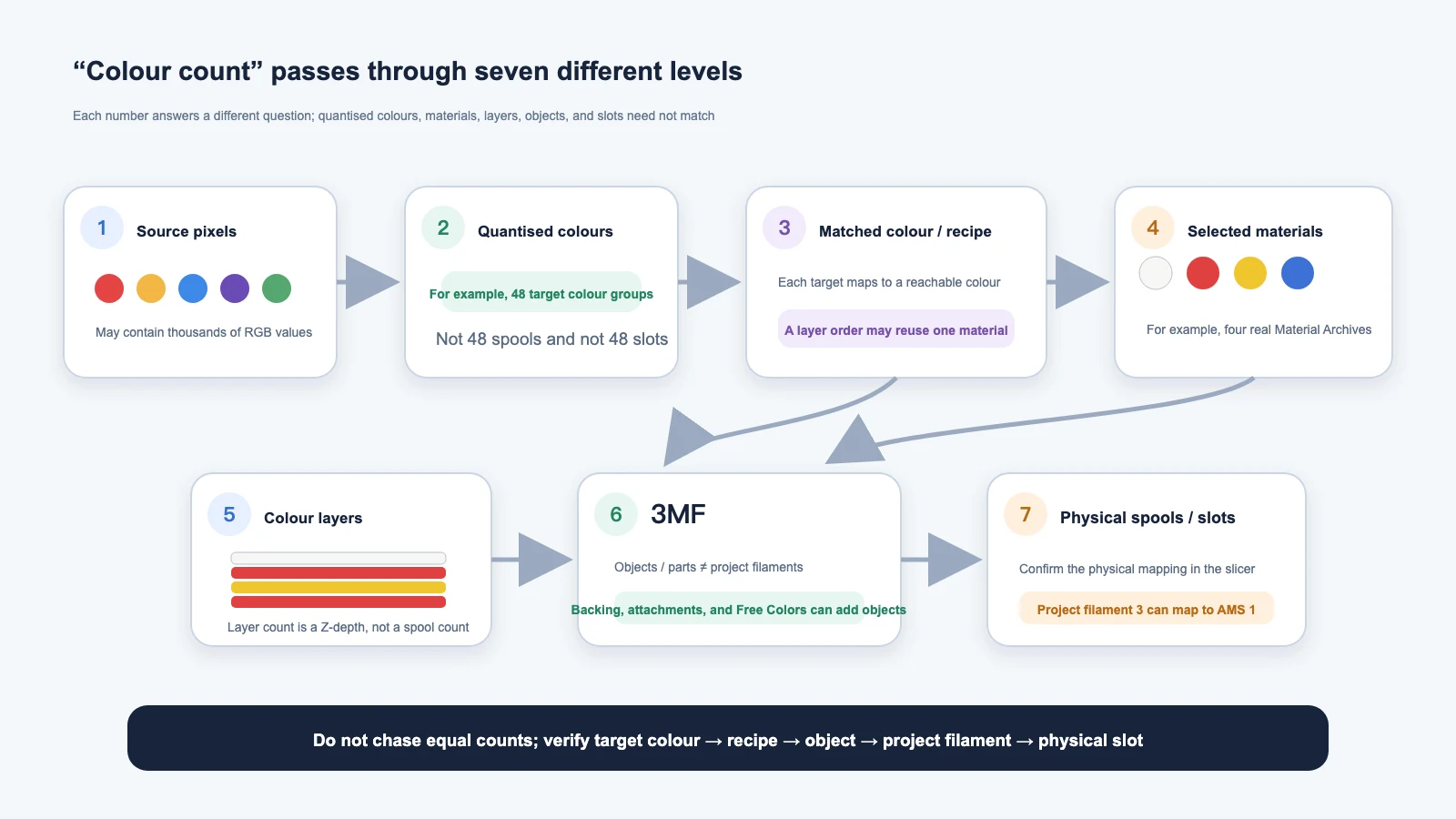
Eight concepts that should not share one number
| Concept | What it answers | What it does not mean |
|---|---|---|
| Source colour | The RGB value stored in each source pixel | The printer can reproduce every value directly |
| Quantize Colors | How many target colour groups High-Fidelity creates from similar pixels | The number of spools, AMS slots, or 3MF objects |
| Matched colour and layered recipe | Which reachable colour and layer order represents a target group | One physical spool is required for every result colour |
| Selected materials | Which archive or LUT material channels can participate in this conversion | They must occupy physical slots with matching numbers |
| Color Layers | The maximum Z-direction recipe length for a pixel | The number of selected physical spools |
| Free Color | A matched colour region exported as an additional independent 3MF object | Automatic loading or unlimited new physical colours |
| 3MF object or part | Geometry that the slicer can select and assign independently | The number of project filaments; several objects can share one filament |
| Project filament, physical spool, and machine slot | A 3MF material definition, the real filament, and its current hardware position | Their numbering must be identical |
Quantize Colors groups a continuous image into solvable targets
Photos, illustrations, gradients, and anti-aliased edges can contain many slightly different RGB values. High-Fidelity does not solve every unique value independently. It first clusters nearby pixels into a limited number of target groups, controlled by Quantize Colors.
In the current converter, this setting:
- applies to colour quantisation in High-Fidelity, not Vector mode;
- normally offers 8–256 or Auto Calculate;
- can be unlocked up to 8192, with substantially higher memory and processing cost;
- usually preserves more subtle gradients at higher values and produces fewer, faster colour regions at lower values.
A value of 48 means that the source is organised into approximately 48 target groups. It does not mean 48 spools or 48 material slots. Many target groups can share the same physical materials with different layer orders.
If a broad gradient becomes obvious bands, increase Quantize Colors moderately while keeping other settings fixed. If Preview is slow and the source is visually simple, reduce it. Do not unlock 8192 merely because the source has many pixels.
A target colour is not one spool
After quantisation, every target colour is matched to a colour reachable by the current LUT or Material Archives. Lumina can repeat and reorder a small set of real materials across several layers to produce more visible colours than physical spools.
For example, an image with 48 target groups can use four archives—white, red, yellow, and blue. Different target colours might use:
- white → red → white → white → white;
- white → yellow → red → white → white;
- white → blue → red → yellow → white.
These recipes use the same four real materials but produce different final colours. Therefore:
- visible result colours can outnumber physical spools;
- quantised groups can outnumber selected materials;
- several target groups can map to the same or a very similar reachable colour.
If the gamut is insufficient, inspect the archives and physical filaments instead of only increasing Quantize Colors. For source selection, see Installed or Custom Material Archives, Inferred LUTs, or Legacy LUTs?.
Selected materials and Color Layers answer different questions
With Material Archive as the Source Type:
- Selected Materials are the real material archives allowed in the solution;
- Base Plate Material identifies the backing material;
- Color Layers limits the number of layers in one colour recipe;
- Layer Height sets the physical thickness of each of those layers.
Selecting four archives and five Color Layers is completely normal. A five-layer recipe may reuse one archive and does not require a fifth spool.
Numbers such as 2-colour, 4-colour, 6-colour, or 8-colour in older LUT names describe material channels and compatibility in that LUT. They do not limit the image to the same number of visible colours. Keep these three counts separate:
- Quantize Colors in High-Fidelity;
- Color Layers in a recipe;
- physical machine slots currently available.
If the machine has fewer usable slots than the required material channels, you must plan a swap, split the job, or reduce the material set. A software number cannot add hardware slots.
Free Color creates an independently assignable object
Free Color is not another quantisation mode. In the current workflow, complete a
Preview, select a matched colour, and mark it as a Free Color. On the next Generate,
Lumina creates an additional object named from the colour, such as Free_FF0000.
This is useful when:
- a logo, text region, or flat area must use a specific physical spool;
- you want to select that region independently in the slicer and assign a project filament manually;
- a special material must be inspected separately from normal layered regions.
Marking a Free Color does not:
- add one to Quantize Colors;
- create or occupy a physical AMS slot automatically;
- find a real spool from the screen HEX value;
- bypass printer, material, or slot limits.
After marking or clearing Free Colors, the older 3MF result is no longer current and must be generated again. In the slicer, find the independent object, assign the correct project filament, then map that filament to the real spool and physical slot.
screen HEX can be printed exactly. Physical filament, material preset, first layer, build surface, and viewing light still determine the result.
Verify object, project filament, spool, and slot one level at a time
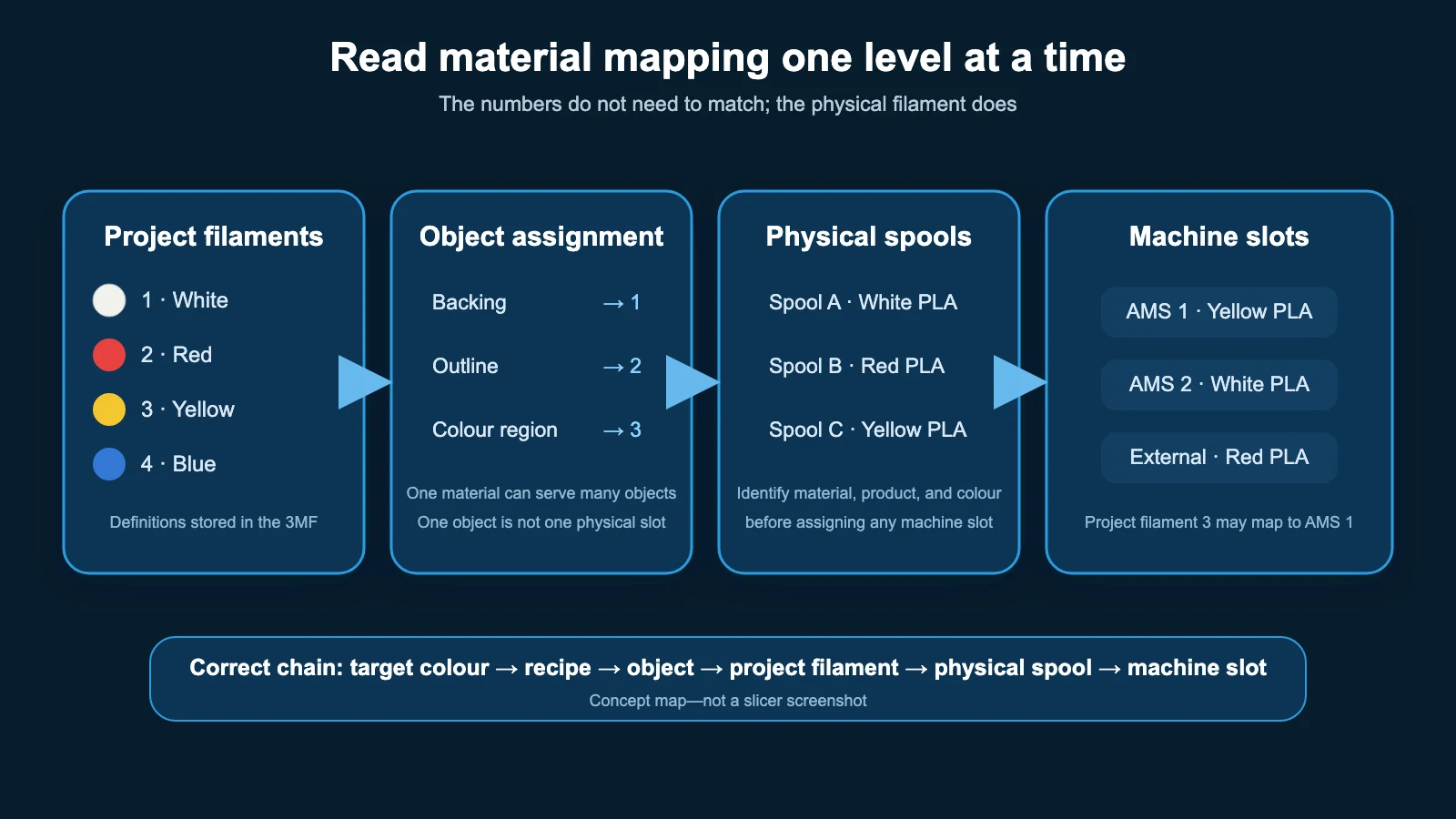
Object or part
An object is geometry. Backing, material meshes, outlines, loops, Free Colors, and other attachments can all become independent objects. One colour can be split into several objects, and several objects can use one project filament.
More objects than visible colours is not automatically an error. The important check is whether every object uses the intended material.
Project filament
A project filament is the material definition and number stored in the 3MF. A number shown next to an object usually means “this object uses project filament N,” not “load it into physical AMS slot N.”
Its display swatch is also mainly an identification aid. A red swatch does not prove that the definition matches the correct brand, product line, material, and batch.
Physical spool and machine slot
The physical spool is the real material you intend to print. The machine slot is its current location in AMS, ACE, MMU, or an external holder.
Use this order:
- confirm which project filament each object should use;
- identify the physical spool represented by each project filament;
- map that spool to its current machine slot;
- slice the project and inspect the display surface layer by layer.
Project filament 3 can map to AMS 1. Matching numbers are not the goal; matching real materials are. For the complete operation, see Open a Lumina 3MF in Your Slicer.
Which setting should I change?
| Goal | Change first | Do not change first |
|---|---|---|
| A gradient has too few target groups and visible banding | Quantize Colors | Do not add physical spools first |
| Quantisation is detailed but an entire gamut region is missing | Material Archives or LUT and selected materials | Do not keep increasing Quantize Colors alone |
| More Z-direction recipe combinations | Color Layers, while evaluating thickness and time | Do not treat layers as slots |
| One region must use a designated spool | Mark Free Color, Generate again, and assign it in the slicer | Do not assume screen HEX loads material |
| The slicer contains many objects | Inspect object-to-project-filament assignment | Do not infer colour count from object count |
| Project-filament number differs from AMS number | Map project filament to the real machine slot | Do not move spools merely to make numbers match |
Two complete examples
Example 1: 48 quantised groups, four spools, five Color Layers
An illustration uses 48 for Quantize Colors, four Material Archives—white, red, yellow, and blue—and five Color Layers.
This means:
- the image is organised into up to about 48 target groups;
- each target receives a recipe up to five layers long, selected from four materials;
- 48 spools and 48 AMS slots are not required;
- the generated object count can exceed four because of backing, attachments, or geometry separation.
Example 2: mark a red logo as Free Color
After Preview, select the matched red used by a logo, mark it as Free Color, and Generate again.
This means:
- Quantize Colors is unchanged;
- Lumina adds an independently selectable object for the matched region;
- the object still needs to be assigned to the intended real red spool in the slicer;
- if that introduces another physical material, the machine still needs a usable slot and a new slicing pass.
Common questions
Does Quantize Colors at 256 require 256 slots?
No. It is a limit on target groups in High-Fidelity. Many groups share the same real materials through different layered recipes.
Why can I select eight materials but only five Color Layers?
Material count describes available channels. Color Layers describes the Z-direction length of one pixel recipe. A five-layer recipe can choose from and repeat any of the eight materials.
Are old 4-colour, 6-colour, or 8-colour modes the same as Free Color?
No. The older numbers primarily describe LUT material channels. Free Color separates one already matched region into an independent object for manual assignment.
Why does the slicer show more objects than materials selected in Lumina?
Objects are geometry. Backing, attachments, separated same-colour regions, and Free Colors can increase object count while continuing to share project filaments.
Must project filament 2 be loaded in AMS 2?
No. Project numbers and physical slots are different levels. Before printing, map project filament 2 to the slot containing its intended physical spool.
The slicer swatch does not look like the spool. Will it print incorrectly?
A swatch can be an approximate display colour. Verify the object, project filament, physical spool, and slot chain. A display mismatch alone does not replace the real spool; a mapping error must be corrected.
Further reading
- How Do I Choose High-Fidelity, Pixel Art, or Vector Mode?
- How Should I Choose and Store Filament for Lumina 2.0?
- Open a Lumina 3MF in Your Slicer
- Why Do Lumina Preview, Slicer Preview, and the Physical Print Look Different?
Content licence
The original text, tables, and concept diagrams on this page are covered by the Wiki's CC BY-NC-SA 4.0 content licence, unless otherwise stated. Rights in slicers, material systems, brands, interfaces, and trademarks remain with their respective owners.
This page describes the concepts and export relationships in the current Lumina Studio 2.0 development version. Limits, object structure, and slicer presentation can change. Always confirm the current interface, sliced toolpaths, and physical machine before printing.
Submit feedback
Your feedback is sent privately to the Wiki maintainers and is not displayed publicly on this page.