This article was prepared with AI assistance based on an analysis of the current Lumina Studio source code, existing Wiki content, and relevant workflows. It has been checked against the current version, but omissions or details that become outdated may remain as the software evolves. If you find an error or have a clearer explanation, example, or suggestion, please leave a comment on this page or propose an edit on GitHub.
Which Features Can Be Used Together?
If you remember only one rule: colour and appearance features are often composable; features that change geometry or the export workflow need explicit compatibility checks.
- Color Workstation, Custom Recipe, Outline, Transparent Coating, and Separate Backing can usually be used in an ordinary single- or double-sided project.
- Relief, Cloisonné, Fridge Magnet, Puzzle, Large Format, and Batch change geometry or generation behaviour and are not ordinary cosmetic switches.
- Fridge Magnet is single-sided and cannot be combined with Puzzle, Large Format, or Keychain Loop.
- Puzzle cannot be combined with Batch, Large Format, Fridge Magnet, or Keychain Loop.
- Relief and Cloisonné are mutually exclusive; Native Vector currently uses neither.
- An enabled control does not prove a combination is reliable. After adding a structural feature, Preview, Generate, slice, and inspect the real layers again.
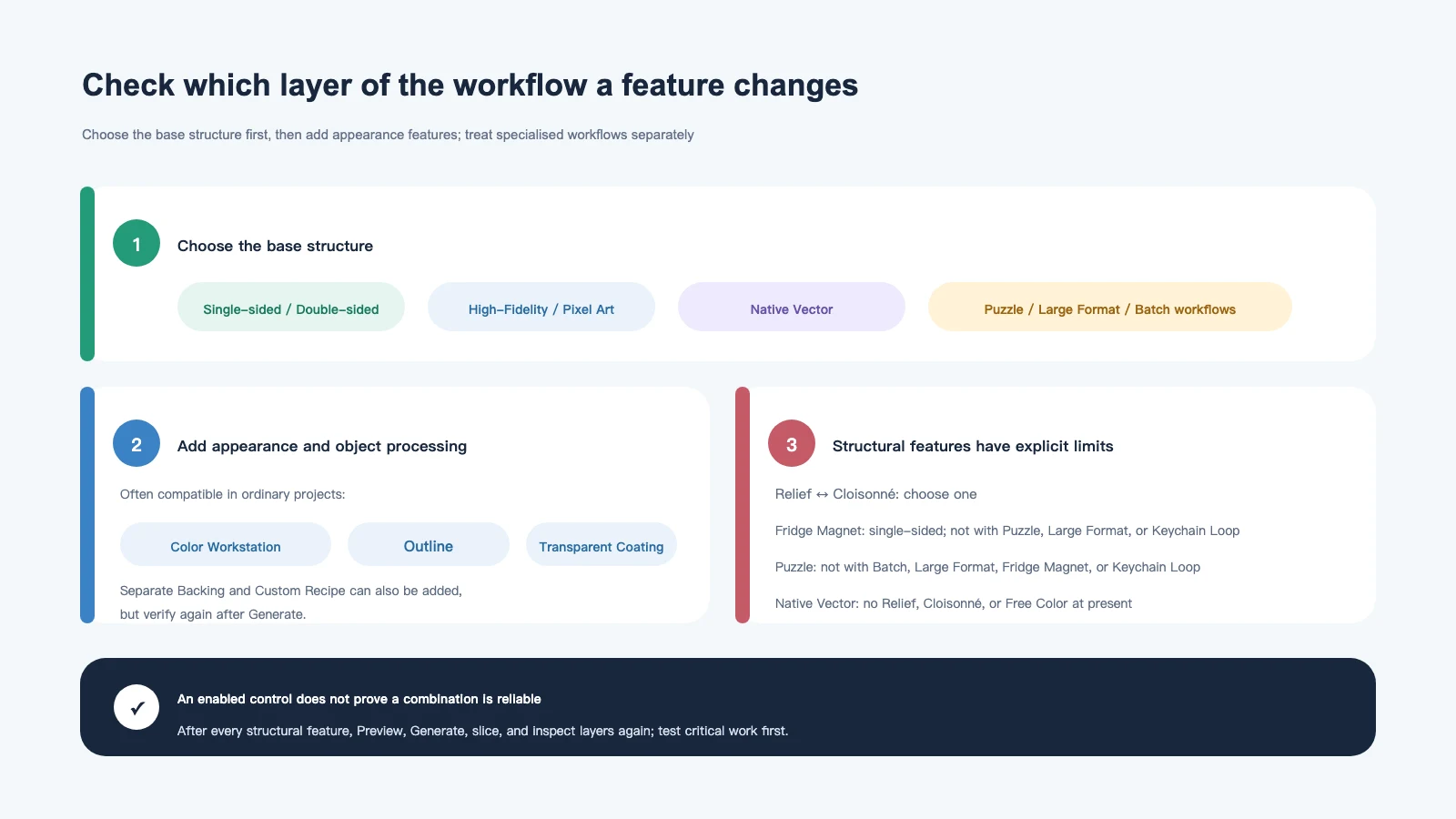
First identify what the feature changes
Colour and recipes
Color Workstation replacements, local-region edits, and Custom Recipes primarily change how colour layers use materials. They do not add machine slots or replace slicer material mapping.
They can usually coexist with Outline, Transparent Coating, and Separate Backing. Generate a new file after every edit; an older 3MF will not update itself. See Color Workstation Basics.
Appearance and object organisation
These features add or reorganise exported objects without replacing the base structure:
- Outline follows a usable source boundary. A source without a clean alpha boundary, or an overly complex SVG, may produce an incomplete outline.
- Transparent Coating adds a separate surface object. Map it to the transparent physical filament you intend to use.
- Separate Backing exports the backing as an independent object; it does not change Backing Thickness.
- Free Color exports one matched-colour class as an independent object; it does not create another printable colour.
These features can be combined, but every added object makes slicer mapping and print order more complex. Expand the complete object tree after opening the 3MF.
Structure and specialised exports
Relief, Cloisonné, Keychain Loop, Fridge Magnet, Puzzle, Large Format, and Batch change geometry or output behaviour. They have explicit conflicts. If a recipe imported from another version records conflicting settings, Lumina may disable one to restore a valid state.
Current compatibility reference
Symbols:
- ✅: available in an ordinary workflow; sliced verification is still required;
- ⚠️: conditional support or a specialised verification path;
- —: do not combine in the current version.
| Feature | High-Fidelity / Pixel Art | Native Vector SVG | Single / Double-sided | Main boundary |
|---|---|---|---|---|
| Color Workstation and Custom Recipe | ✅ | ✅ | ✅ | Generate again and remap physical spools after every edit |
| Outline | ✅ | ⚠️ | ✅ | Requires a usable boundary; inspect complex SVG outlines |
| Transparent Coating | ✅ | ✅ | ⚠️ | For double-sided work, verify the coated face and print order |
| Separate Backing | ✅ | ✅ | ⚠️ | Reorganises objects only; inspect complex or double-sided structures |
| Free Color | ✅ | — | ⚠️ | Exports matched colours as objects; not for Native Vector currently |
| Relief | ✅ | — | Single-sided only | Mutually exclusive with Cloisonné; height-map Relief is not a Batch feature |
| Cloisonné | ⚠️ | — | Test single-sided first | Mutually exclusive with Relief; still under development |
| Keychain Loop | ✅ | ⚠️ | Prefer single-sided | Not with Fridge Magnet or Puzzle; inspect the hole and connection |
| Fridge Magnet | ✅ | ⚠️ | Single-sided only | Not with Puzzle, Large Format, or Keychain Loop |
| Puzzle | Specialised workflow | — | Specialised structure | Not with Batch, Large Format, Fridge Magnet, or Keychain Loop |
| Large Format | Specialised workflow | ⚠️ | Inspect every tile | Not with Puzzle or Fridge Magnet; complex SVGs may rasterise for tiling |
| Batch | Specialised workflow | ⚠️ | Inspect each file | Not with Puzzle, Validation Card, or height-map Relief |
Native Vector here means Lumina’s Vector mode, not a PNG saved inside an .svg wrapper.
See High-Fidelity, Pixel Art, or Vector?.
Five practical starting points
Ordinary flat artwork
Start with exactly one of High-Fidelity, Pixel Art, or Native Vector plus Color Workstation. Add Outline, Transparent Coating, or Separate Backing one at a time after the base Preview is correct.
Keychain or pendant
Use an ordinary single-sided structure, add Keychain Loop, then optionally add Outline or Transparent Coating. Verify that the loop is joined to the body, the hole is large enough, and the sliced connection remains continuous. Do not also enable Fridge Magnet or Puzzle.
Fridge magnet
Switch to single-sided, then add the magnet recess. Outline, coating, and Color Workstation can be used when appropriate, but do not combine the recess with Keychain Loop, Puzzle, or Large Format. Magnet thickness, recess depth, and Backing Thickness must leave enough material behind the display layers.
Relief
Use a raster source and a single-sided structure. Verify Relief direction before adding Outline or coating. Do not enable Cloisonné or search for Relief inside Native Vector. Batch generation supports only the colour-height behaviour explicitly provided there, not a separate uploaded height map.
Puzzle, Large Format, or Batch
Treat each as its own workflow:
- for Puzzle, disable Large Format, Batch, Fridge Magnet, and Keychain Loop;
- for Large Format, verify one ordinary model first, then follow Large Format: Tile Size, Assembly Order, and ZIP Output;
- for Batch, prove the shared settings on one representative image before adding the rest.
Why does another switch turn off automatically?
Lumina prevents known invalid states. For example:
- enabling Fridge Magnet switches to single-sided and disables Puzzle, Large Format, and Keychain Loop;
- enabling Puzzle disables Large Format, Keychain Loop, and Fridge Magnet;
- enabling Relief switches to single-sided and disables Cloisonné;
- enabling Cloisonné disables Relief;
- entering Batch mode makes Puzzle unavailable.
Review the settings summary after changing a structural feature. Do not repeatedly re-enable conflicting switches.
The backing layer-height modifier also has limits
The modifier is intended for an ordinary, clearly separated backing structure read by a compatible Bambu-family slicer. It is not a universal acceleration switch:
- Gradient Card has its own fixed structure and does not use the ordinary modifier;
- Puzzle and specialised exports manage their own structure;
- double-sided, Relief, Fridge Magnet, or other complex geometry requires proof that the modifier range does not touch display layers, recesses, or attachments;
- Separate Backing and the layer-height modifier solve different problems.
See Backing, Colour Layers, and Layer-Height Modifiers.
Fixed verification order after combining features
- Base Preview: verify image mode, Source Type, size, and base structure.
- Add one feature: compare 2D, 3D, and Layer Preview immediately.
- Generate again: download a new 3MF after every change.
- Open as a complete project: inspect backing, colour layers, Free Colors, coating, outline, and attachments in the object tree.
- Map real materials: object display colours are not physical machine slots.
- Slice: turn to the display surface and inspect every layer, local height, and attachment connection.
- Test first: use a small print for structural features, complex SVGs, double-sided work, or a new material combination.
For object and slot mapping, see Import a Lumina 3MF into Your Slicer Correctly.
Common questions
Can Outline, Transparent Coating, and Keychain Loop be used together?
They are a reasonable starting point for an ordinary single-sided pendant. Still check that the outline preserves detail, the coating object is mapped to transparent material, and the loop has a continuous, sufficiently wide connection.
Can a fridge magnet also have a keychain loop?
Not as a supported combination in the current version. Enabling Fridge Magnet disables Keychain Loop. Build and validate a dual-purpose structure in an external modelling tool instead of bypassing the conflict.
Why are Relief and Cloisonné missing from Native Vector?
The current Native Vector workflow does not support them. Use an appropriate raster source for Relief. Cloisonné also remains under development.
Why can a Large Format SVG look rasterised?
Large Format prefers supported vector geometry, but may fall back to raster tiling for SVG features that cannot be divided reliably. Compare edges before and after generation, then test one tile.
A recipe lost one option after import. Is it corrupted?
Not necessarily. The recipe may come from another version or contain a combination that is no longer valid. Lumina can disable a conflicting option. Trust the current summary and Preview rather than assuming that every switch must restore verbatim.
Is a slicer result without errors automatically safe?
No. A slicer can produce paths without understanding magnet wall thickness, loop strength, coating material, display-surface direction, or the intended colour recipe. Inspect layers and print a sample.
Content licence
Unless otherwise noted, the original text and diagram on this page are available under the Wiki’s CC BY-NC-SA 4.0 content licence.
Feature names and compatibility boundaries continue to evolve. The current interface, generated objects, and real sliced paths are the final authority.
Submit feedback
Your feedback is sent privately to the Wiki maintainers and is not displayed publicly on this page.