This article was prepared with AI assistance based on an analysis of the current Lumina Studio source code, existing Wiki content, and relevant workflows. It has been checked against the current version, but omissions or details that become outdated may remain as the software evolves. If you find an error or have a clearer explanation, example, or suggestion, please leave a comment on this page or propose an edit on GitHub.
Share Cards and JSON: Export, Import, and Continue Editing
Lumina Share Cards transfer the source artwork and current conversion settings to
another device or user, or preserve them for later editing. You can export a viewable
PNG Share Card or a separate .lumina.json recipe file.
The important rules are:
- a valid Preview is required before the export buttons appear;
- a PNG Share Card is an ordinary viewable image with Lumina recipe data embedded in it;
.lumina.jsonhas no visual cover and is better suited to unchanged archival storage;- both contain source artwork and conversion settings; neither is the final 3MF;
- inspect source, version, LUT, colour mode, size, and warnings before confirming import;
- after restore, Preview, Generate, and slice again;
- image compression, screenshots, or platform re-encoding can remove the embedded PNG data.
PNG Share Card or JSON?
| Question | PNG Share Card | .lumina.json |
|---|---|---|
| Can it be viewed directly? | Yes | Not usefully |
| Can Lumina import it? | Yes, if the embedded data survives | Yes, if the file and integrity check are intact |
| Contains source artwork? | Yes | Yes |
| Contains conversion settings? | Yes | Yes |
| Contains final 3MF? | No | No |
| Best use | Let someone view and optionally restore the project | Archive, device transfer, and backup beside the PNG |
| Main risk | Image tools remove embedded data | Editing, truncation, or renaming breaks the file |
For an important project, keep the source image, PNG Share Card, JSON, final 3MF, and the actual LUT or Material Archives. These files solve different recovery problems.
Step 1: make sure Preview reflects the state you want to save
Before exporting, check image orientation, crop, transparency, colour source, size, backing, structure, Modeling Mode, colour replacements, custom recipes, and device settings. Run Preview after every relevant change. An old Share Card does not update itself when the current page changes.
Step 2: export a Share Card or JSON
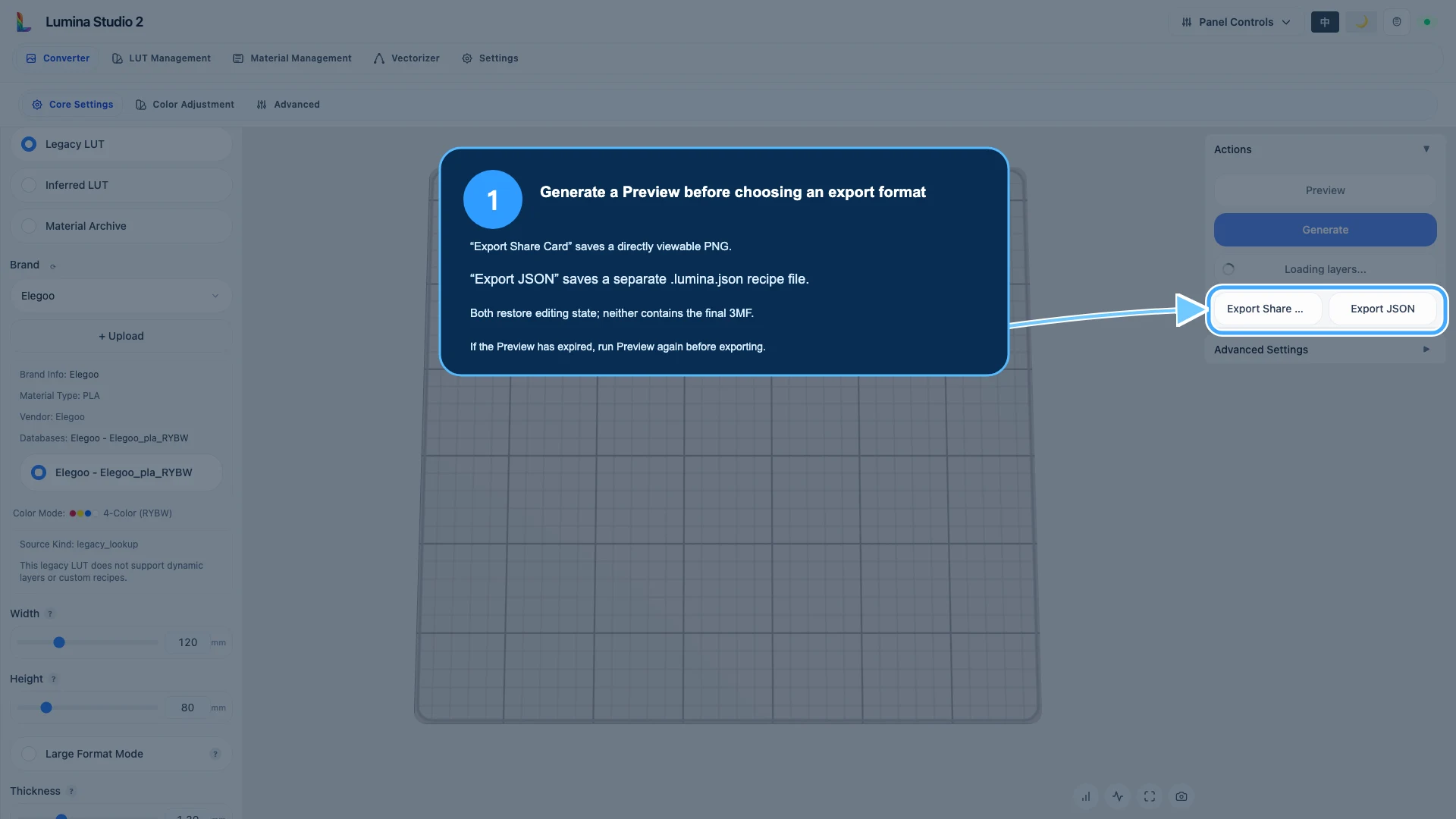
After a valid Preview:
- Export Share Card saves a PNG, normally with
-share.pngin the filename; - Export JSON saves a
.lumina.jsonfile.
If the buttons are missing or the Preview has expired, run Preview again. Generating a 3MF is not required for these export controls; the current Preview and recipe state are.
Step 3: understand what the PNG contains
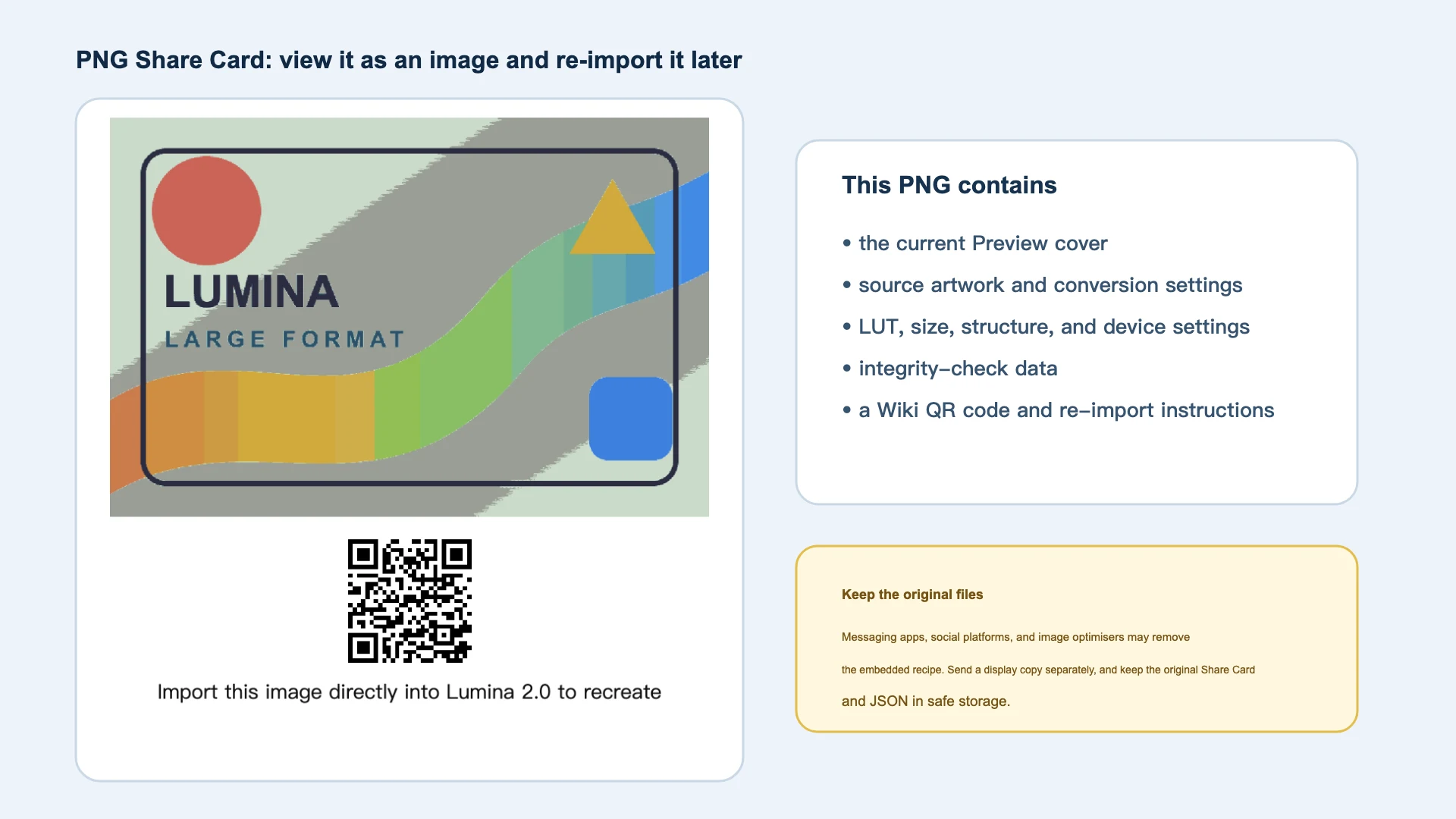
The visible image includes the Preview cover, a Wiki QR code, and import instructions. The embedded data can also include:
- the source image and compatible auxiliary source data;
- Source Type, LUT identity, colour mode, and colour layers;
- size, backing thickness, one- or two-sided structure, and Modeling Mode;
- supported colour replacements, Free Color, and custom recipe state;
- compatible structure settings such as outline, coating, puzzle, Large Format, or Relief;
- printer, slicer, nozzle, and device settings;
- integrity data used to detect corruption or modification.
A Share Card is not merely a screenshot. An importer may recover the embedded source artwork and settings. Do not publicly distribute personal images, private client work, commercial models without permission, or material you are not authorised to redistribute. Treat a public display copy and an importable project file as separate decisions.
Why does a reposted PNG sometimes stop importing?
Messaging apps, social networks, forums, image editors, and optimisation services may re-encode the PNG while preserving its appearance. Screenshots, JPG/WebP conversion, editing and resaving, or downloading a platform-generated copy can remove the recipe.
When another person needs to import it, send the original file as an attachment, ZIP, or storage link that does not rewrite image data. Re-import the received copy once before deleting your own original. Keep JSON as an independent backup.
Step 4: JSON is better for archival storage
JSON has no viewable cover but contains the project data required for restore. Do not edit it manually merely because it is text. Lumina checks source and recipe integrity; truncated or modified content can be rejected.
Keep the complete .lumina.json extension. To change size, colour, or structure, import the
file into Lumina, edit through the interface, Preview, and export a new version.
Step 5: inspect the import summary before restoring
Choose one original PNG Share Card or .lumina.json file. Lumina opens a confirmation
dialog before changing the current task.
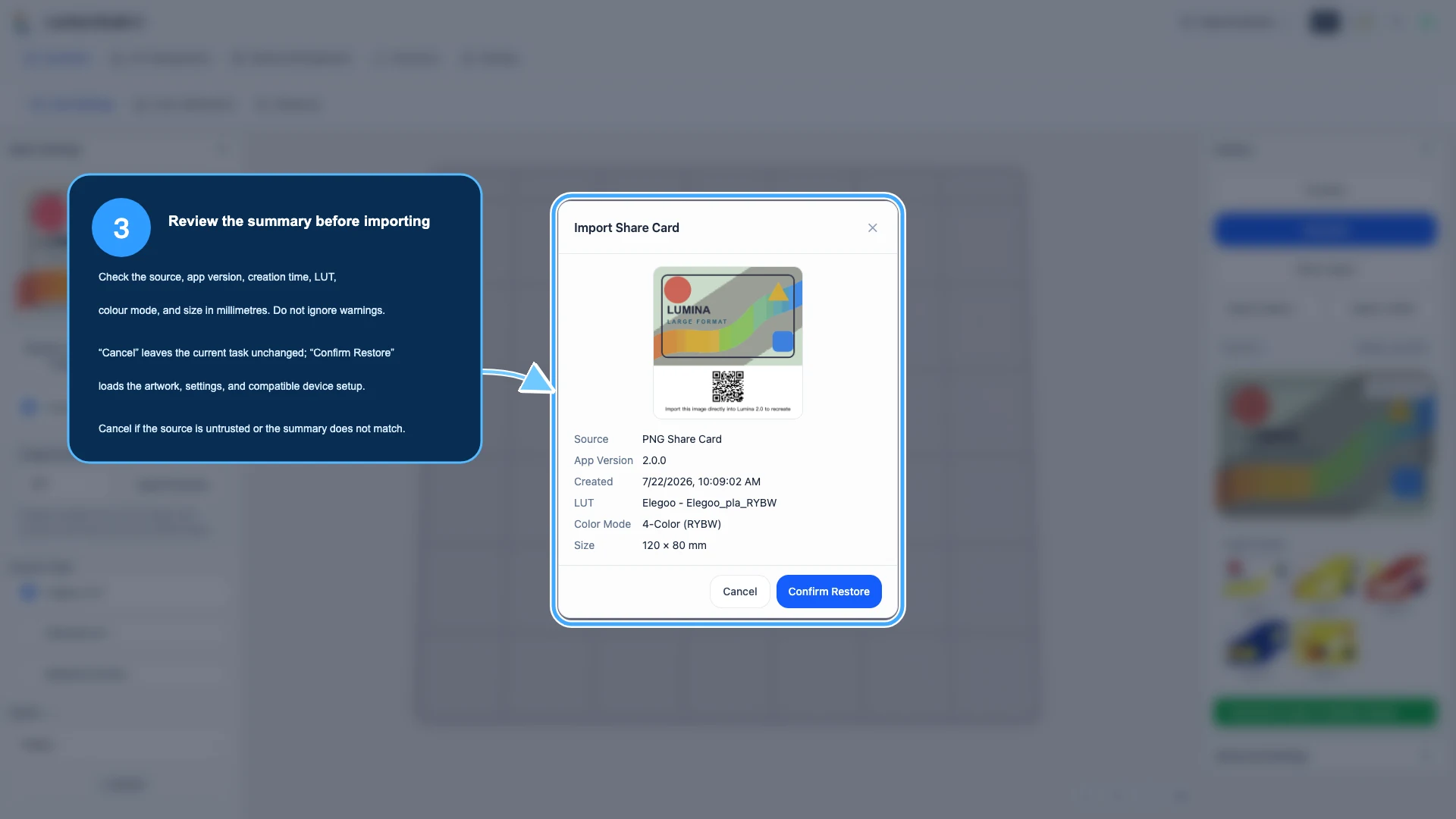
Check:
- trusted source and expected filename;
- app version and creation time;
- Source Type, LUT or archive identity, and colour mode;
- millimetre size and relevant structure;
- any missing-resource, compatibility, or integrity warning.
Cancel leaves the current task unchanged. Confirm Restore loads the source and compatible settings. Cancel if the summary is unexpected or the sender is untrusted.
Step 6: restore, then Preview again
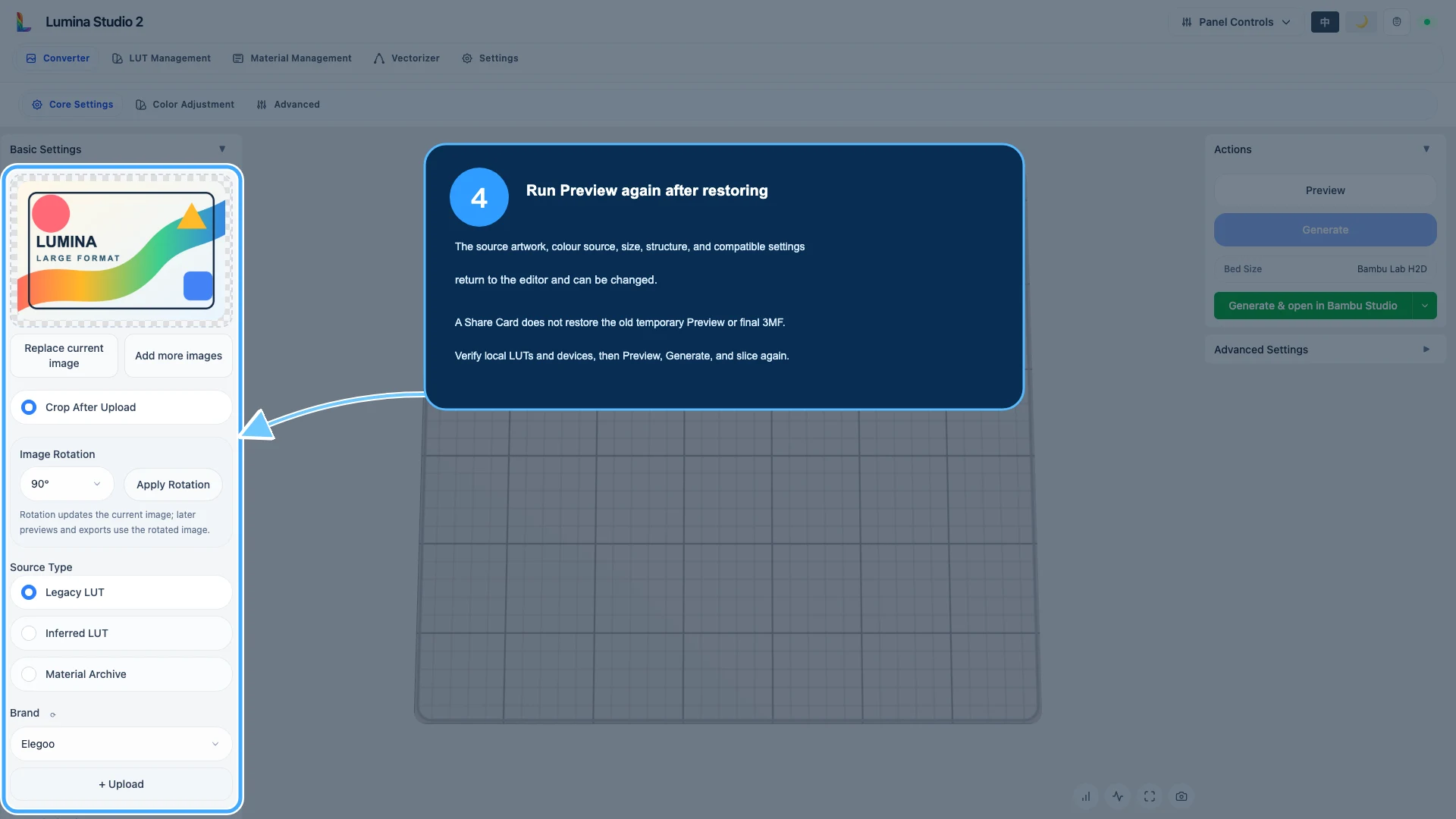
Restore brings the source artwork and compatible editing settings back to the Converter. It does not recover an old temporary Preview, final 3MF, or browser session.
After restore:
- confirm the required LUT or Material Archives exist on this device;
- check printer, slicer, nozzle, and material identity;
- run Preview and inspect the new result;
- Generate a new 3MF;
- open the complete project in the slicer and inspect material mapping and paths.
Do not assume that a restored project will produce byte-identical output on a different software version or with a different local colour source.
Step 7: JSON uses the same safety check
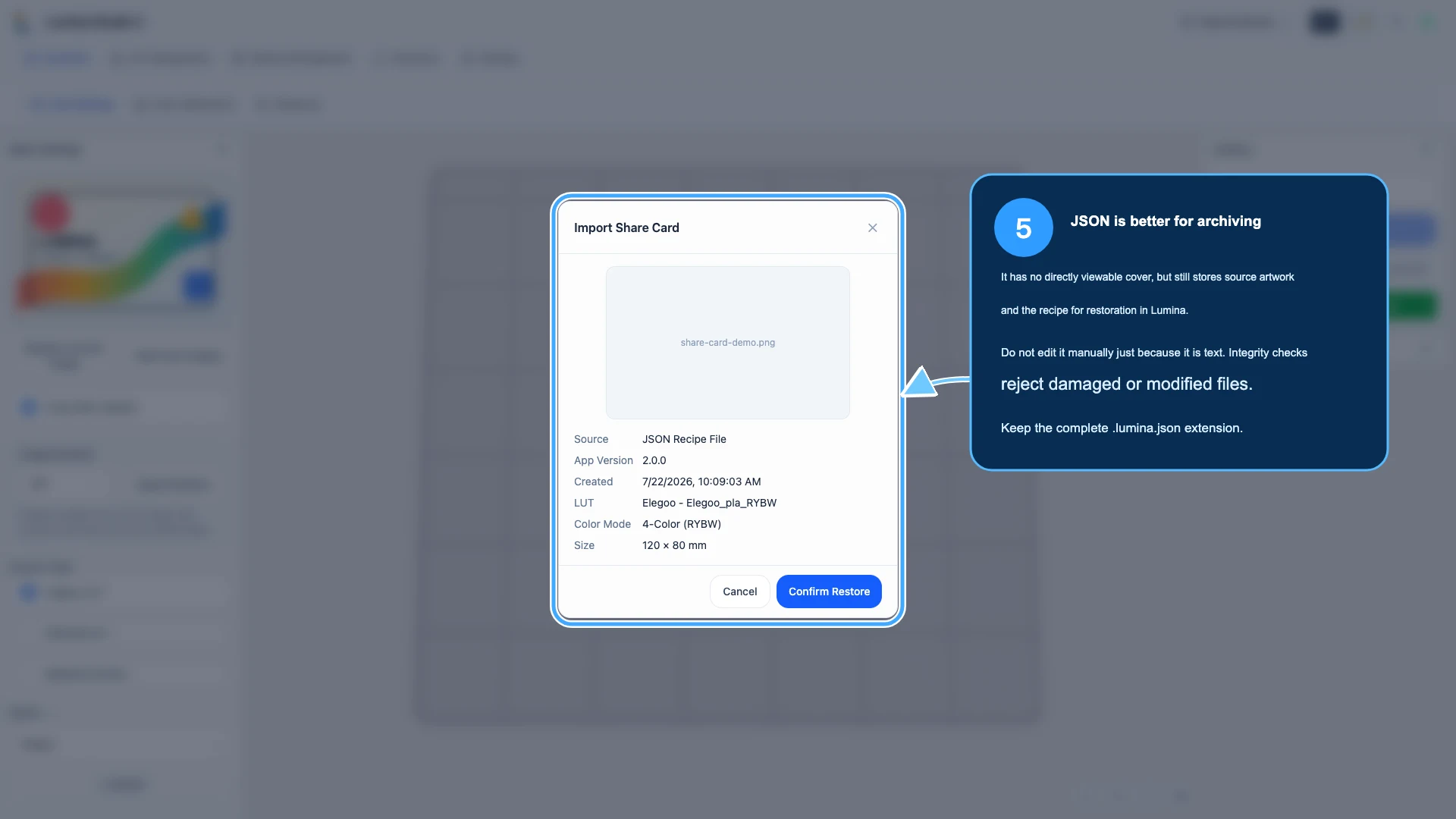
The JSON confirmation provides the same opportunity to inspect metadata and warnings. If a text editor, sync tool, or transfer process changed the file, Lumina may reject it. Keep an untouched offline copy and export a new file after intentional edits in Lumina.
A practical project backup set
For work that must remain reproducible, store:
project-name/
  source-artwork.png
  project-name-share.png
  project-name.lumina.json
  generated-project.3mf
  material-archives-or-lut/
  notes.txt
Record the Lumina version, intended printer/nozzle, colour-layer height, and physical filament identities in the notes. Do not put secrets, accounts, or private machine paths inside a project intended for public sharing.
Common questions
Why are the export buttons missing?
There is no current valid Preview, or the Preview result expired. Run Preview again after confirming the source and colour selection.
Is the PNG just a QR-code image?
No. The visible cover and QR code are only part of it. The original file also carries embedded project data.
Can a Share Card replace the final 3MF backup?
No. It restores editing state. Generate and save the final 3MF separately.
Can I post the Share Card as an ordinary image?
Only after checking redistribution rights and privacy. A platform may also strip its embedded data. Use a separate display copy when public viewing is the only goal.
Why does restore warn that a LUT or archive is missing?
The project refers to a colour source that is not available locally or no longer matches. Install or import the correct source when authorised, then Preview again. Do not silently substitute a similarly named profile.
Why does the imported project look different from the old screenshot?
Possible causes include a different app version, colour source, device setup, or a Preview generated after later edits. Compare the import summary and rebuild from the restored state.
Image notes and content licence
The screenshots and PNG round trip come from a real run in the current English Lumina Studio interface. The visible Share Card contains original tutorial test artwork. Focus annotations explain existing controls and file behaviour.
Unless otherwise noted, the original text, test artwork, and annotations are available under the Wiki’s CC BY-NC-SA 4.0 content licence. Only share third-party artwork when its licence or owner allows redistribution.
Recipe fields and compatibility can change between versions. Treat the current import summary, local colour sources, regenerated Preview, and slicer inspection as authoritative.
Submit feedback
Your feedback is sent privately to the Wiki maintainers and is not displayed publicly on this page.