This article was prepared with AI assistance based on an analysis of the current Lumina Studio source code, existing Wiki content, and relevant workflows. It has been checked against the current version, but omissions or details that become outdated may remain as the software evolves. If you find an error or have a clearer explanation, example, or suggestion, please leave a comment on this page or propose an edit on GitHub.
Slicer Not Detected or 3MF Will Not Open
“The slicer will not open” can mean several different failures:
- Lumina never generated a valid 3MF;
- the browser could not download the result;
- the file downloads but automatic slicer launch fails;
- one slicer does not understand the selected export format;
- the slicer opens geometry but not the complete project.
Start by finding the failing stage. Do not change the slicer path when the 3MF was never generated, and do not regenerate a valid file merely because one-click launch is blocked.
Step 1: confirm Lumina generated a downloadable 3MF
Before investigating the slicer, check that:
- generation completed rather than remaining on a spinner;
- Download 3MF is present;
- the downloaded file is not empty;
- the filename still ends in
.3mf; - the temporary result has not expired.
If the download is missing, empty, or expired, return to Lumina and generate again. For page and generation failures, see The Page Will Not Open, Keeps Spinning, or Generation Fails.
Step 2: match export format to the intended slicer
Lumina’s selected slicer is not only a launch preference; it can affect the generated project format and metadata. In Settings, choose the slicer actually used for this file, then choose the correct printer and nozzle before generating again.
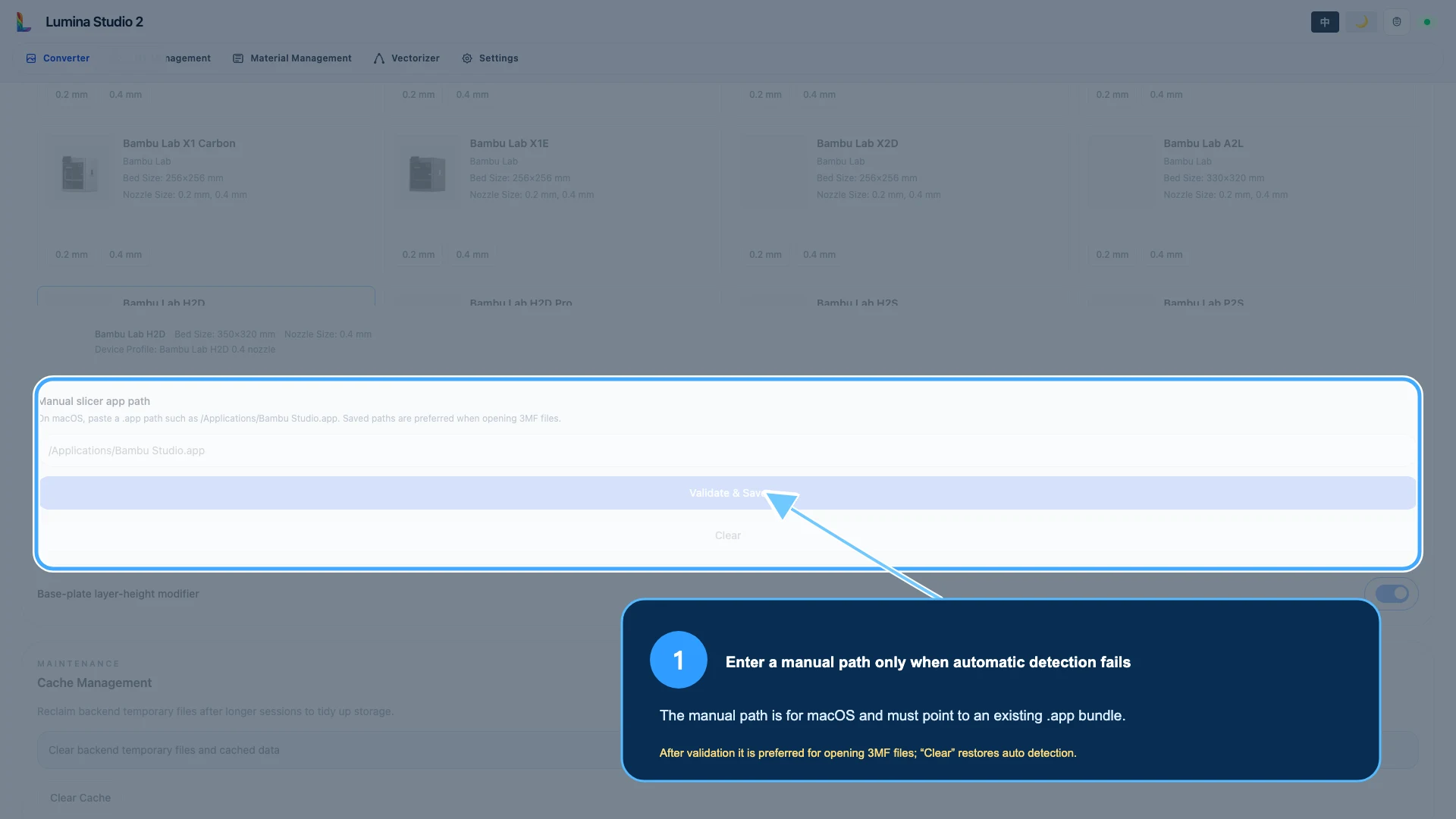
If you change slicer or device settings, generate a new 3MF. An older downloaded result does not automatically adopt the new export setting.
Step 3: use a manual path on macOS only when auto detection fails
On macOS, the manual path must point to the actual .app bundle in Applications. It
must not point to Contents, an internal executable, a disk image, or a website shortcut.
Procedure:
- open the Applications folder in Finder;
- find the installed slicer app;
- read its exact disk filename, including spaces and capitalisation;
- enter the complete
.apppath in Lumina; - select Validate and Save;
- return to the generated result only after validation succeeds.
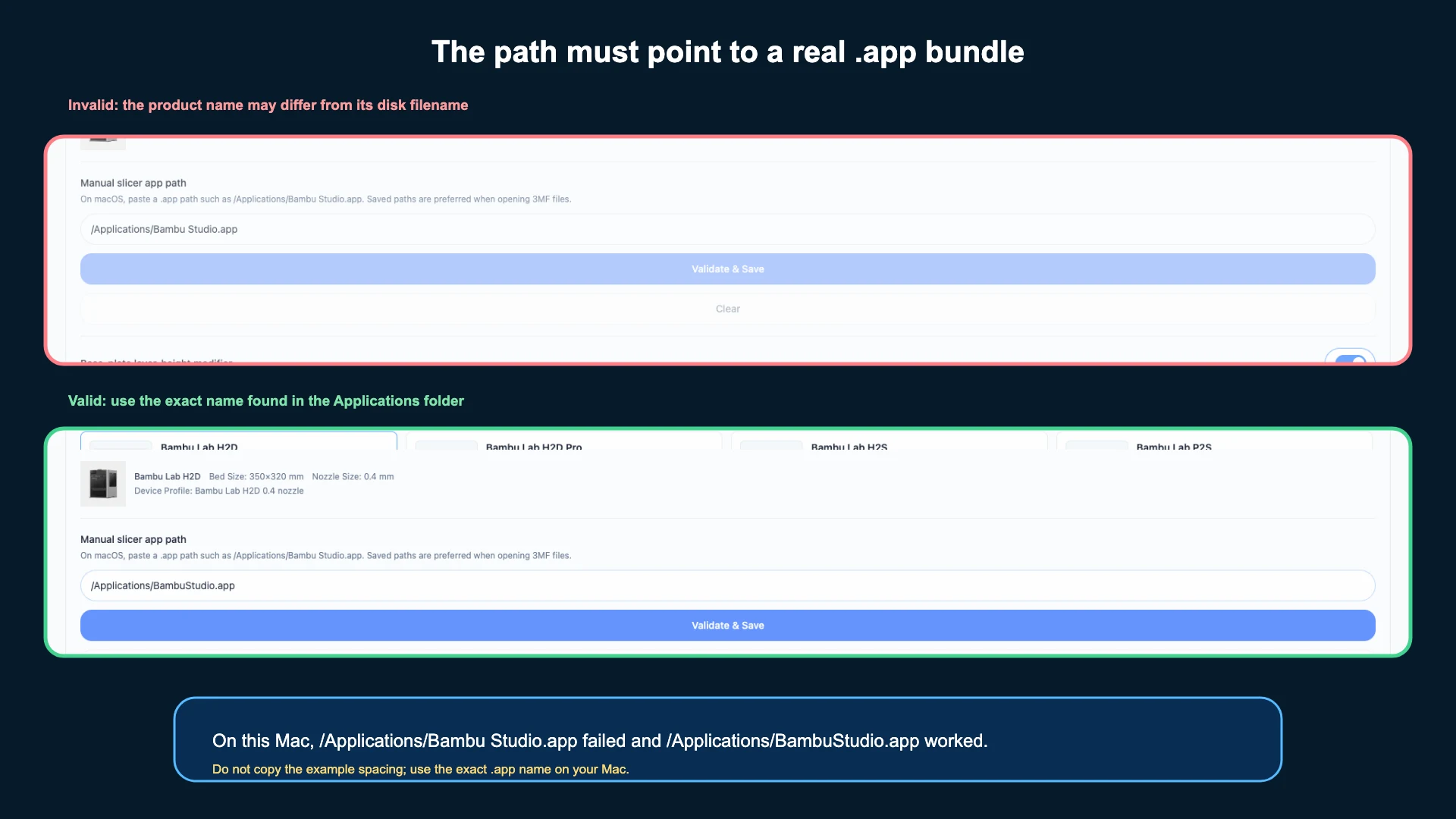
In this documented Mac environment:
/Applications/Bambu Studio.app   ← not the installed filename
/Applications/BambuStudio.app    ← actual installed app bundle
This is an example, not a universal path. Use the exact name on your computer. After a successful save, Lumina prefers that path for opening 3MF files. Clear returns to automatic detection.
The manual .app field is for macOS. On Windows, install the slicer normally, launch it at
least once, and use the downloaded 3MF with the slicer’s Open Project command when auto
detection fails. Do not enter an .exe path into a macOS .app field.
Step 4: use manual Open Project as the reliable fallback
If one-click open fails:
- select Download 3MF;
- verify that the download completed;
- start Bambu Studio, OrcaSlicer, or the configured slicer manually;
- choose File → Open Project;
- select the downloaded 3MF;
- if asked, choose to open the complete project, not geometry only.
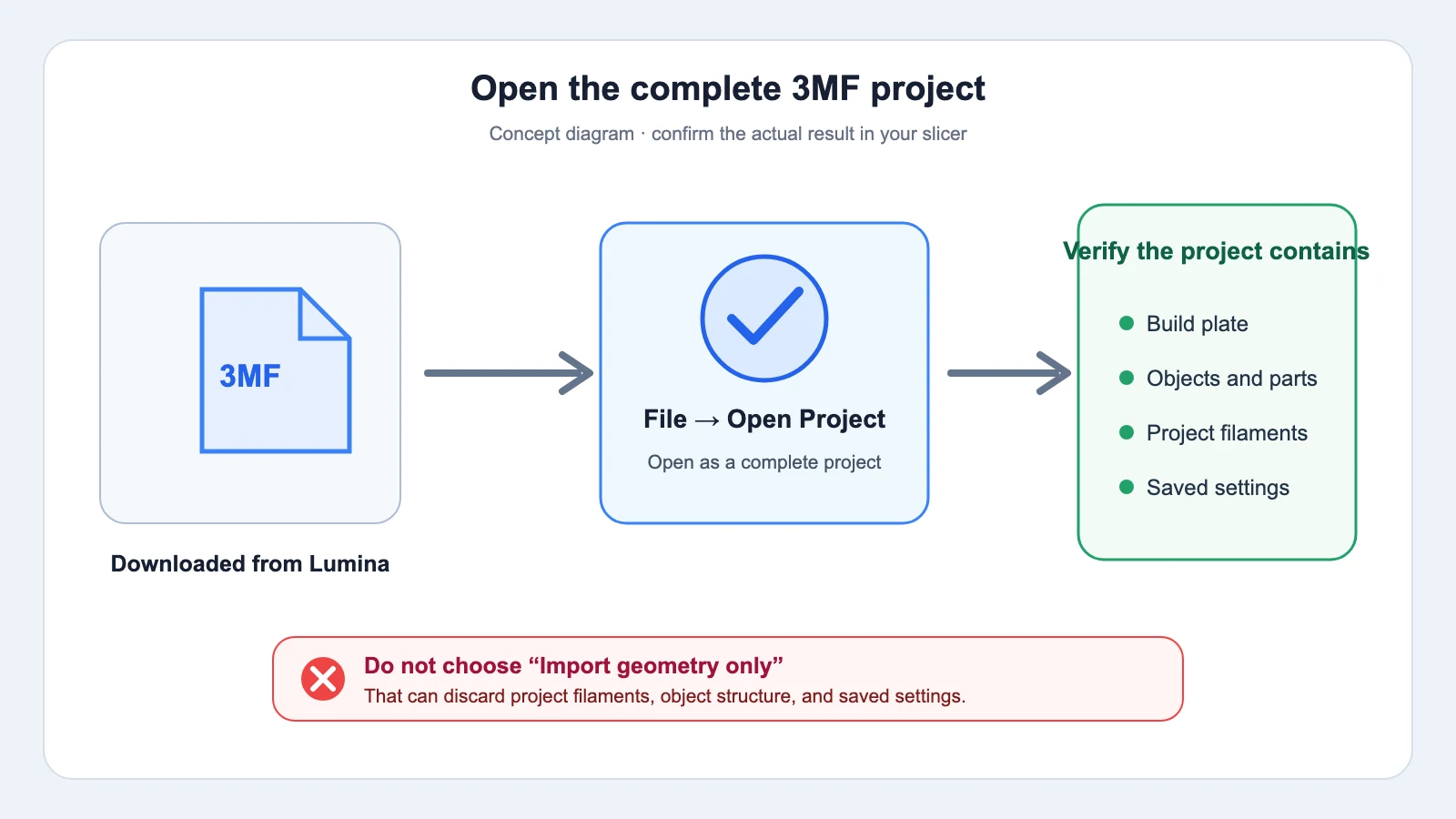
A complete project should preserve the build plate, object or part hierarchy, project filaments, and saved settings. If only one merged geometry object remains, close the file and open it again as a complete project.
Do not unpack a 3MF, rename its internal files, and re-compress it. A 3MF is a structured project container; manual repacking can break metadata and references.
Step 5: follow the shortest diagnostic flow
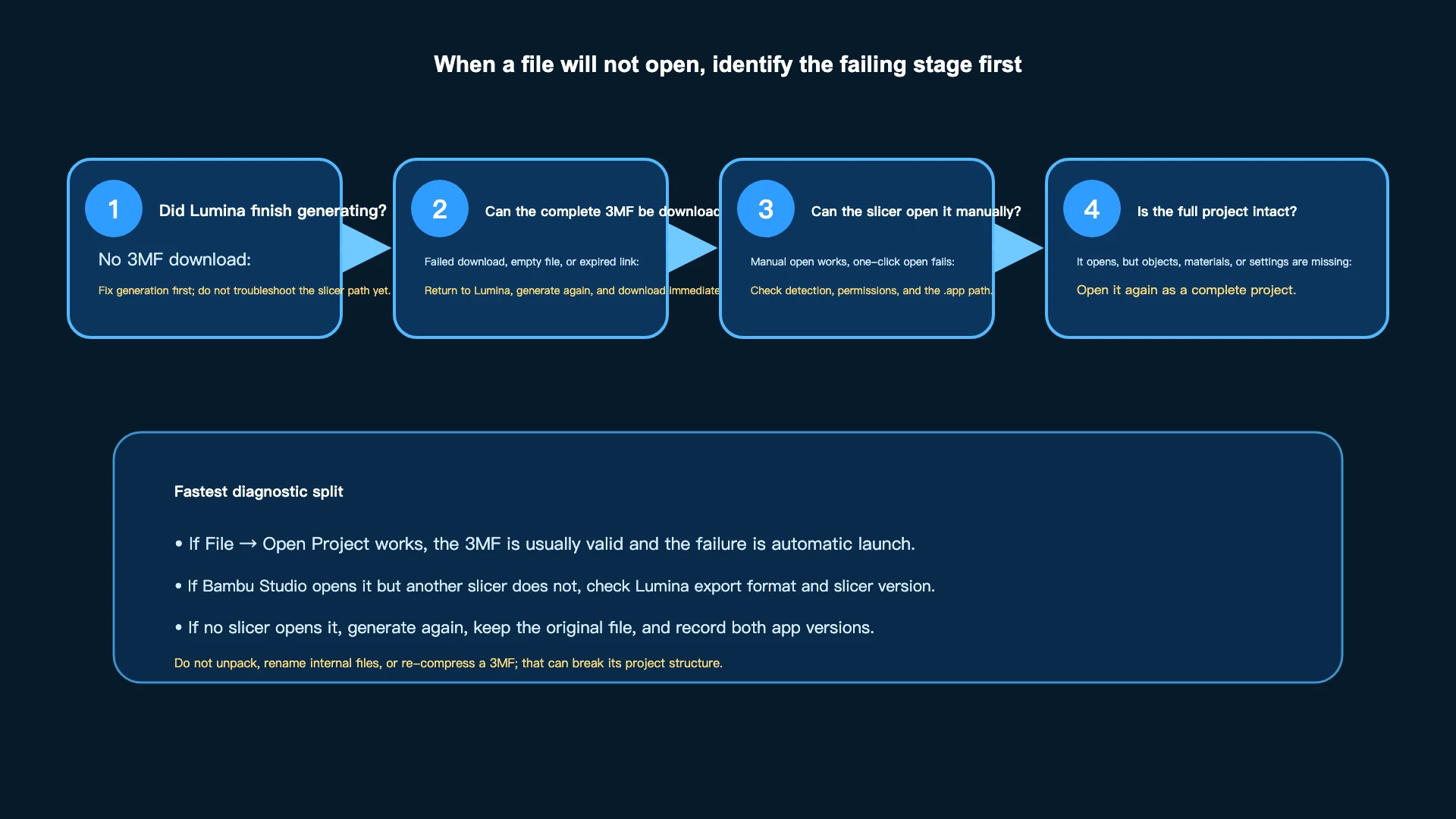
Use these branches:
- No 3MF download exists: fix generation first;
- download fails or is empty: regenerate and save immediately;
- manual Open Project works: the file is usually valid; inspect detection, permissions,
and the
.apppath; - one slicer opens it and another does not: verify export format and both app versions;
- all slicers reject it: generate a fresh copy, keep the original, and record versions;
- it opens but objects/materials/settings are missing: open as a complete project.
Common messages and first actions
| Message or symptom | First action |
|---|---|
| Slicer not detected | Download 3MF and open manually; on macOS inspect the .app path |
| Export format and installed slicer differ | Choose the real slicer and generate a new file |
| Slicer path no longer exists | Locate the moved or reinstalled app and validate the new path |
| 3MF result cannot be found | Generate again; the old temporary result was cleaned or expired |
| Download is temporarily unavailable | Generate again and save the new result immediately |
| Preparing a launch copy failed | Check disk space and permissions; use manual download/open |
| Slicer starts but no project appears | Wait for startup, then use File → Open Project manually |
| Project opens with missing materials or objects | Reopen as a complete project and verify export compatibility |
Capture the full message when reporting a problem. A statement such as “it will not open” does not identify which stage failed.
Step 6: opening is not the final print check
After the project opens, verify:
- printer and nozzle match the real machine;
- project filaments are present;
- every object or part is assigned to the intended project filament;
- project filaments map to the correct physical spools and hardware slots;
- the display face, backing, and every colour layer look correct in sliced Preview.
Use Import a Lumina 3MF into the Slicer Correctly for the complete mapping workflow.
What to include in a useful report
Provide:
- Lumina Studio version or build information;
- operating system and version;
- slicer name and version;
- selected slicer, printer, and nozzle in Lumina;
- a screenshot of the complete error;
- whether one-click open fails, manual open fails, or both;
- the untouched failing 3MF when redistribution is permitted;
- whether another slicer can open it.
Remove accounts, email, browser bookmarks, server addresses, local personal paths, and other private data before posting publicly. Do not upload commercial or private artwork without permission.
Common questions
Why is there no Save button for slicer, printer, and nozzle?
Those ordinary selections save automatically. The custom macOS path has Validate and
Save because Lumina must first confirm that it points to a supported .app bundle.
The path validated, but the Converter shows another slicer. Why?
The selected export slicer and the detected custom path must agree. Choose the intended slicer in Settings and generate a new 3MF.
The slicer was moved and the old path stopped working. Is that expected?
Yes. A saved path is a specific location. Moving, renaming, deleting, or reinstalling the app invalidates it. Validate its new location.
One-click launch starts the slicer but no project appears. What next?
Wait for complete startup, then download the 3MF and use File → Open Project. Record the one-click message so launch-argument and permission problems can be separated.
Does an expired download mean the 3MF is corrupt?
No. Browser results are temporary. Generate again and save the new file to durable storage.
Double-click opens the wrong application. Is Lumina configured incorrectly?
Not necessarily. That is an operating-system file association. Open the target slicer first and use its Open Project command.
Image notes and content licence
The Settings and validation screenshots are real captures of the current English Lumina Studio interface. The complete-project image and decision flow are clearly labelled concept diagrams; they do not imitate a slicer screenshot. Generic application paths contain no account, personal directory, server, or credential.
Unless otherwise noted, the original text, diagrams, and focus annotations are available under the Wiki’s CC BY-NC-SA 4.0 content licence. Bambu Studio, OrcaSlicer, and other product names belong to their respective owners.
Detection and export compatibility can change. Treat the actual generated file, current slicer version, complete-project contents, and sliced Preview as authoritative.
Submit feedback
Your feedback is sent privately to the Wiki maintainers and is not displayed publicly on this page.