This article was prepared with AI assistance based on an analysis of the current Lumina Studio source code, existing Wiki content, and relevant workflows. It has been checked against the current version, but omissions or details that become outdated may remain as the software evolves. If you find an error or have a clearer explanation, example, or suggestion, please leave a comment on this page or propose an edit on GitHub.
What Should I Check When Lumina Will Not Open, Keeps Spinning, or Fails to Generate?
Start at the earliest stage that behaves abnormally. Do not change the network, source image, cache, settings, and slicer installation at the same time. Even if the problem disappears, you will not know which change resolved it.
The workflow has six stages: open Lumina → connect to the backend → prepare a minimal input → complete a minimal Preview → Generate → download, open, or report. When one stage has not passed, later stages usually cannot work correctly.
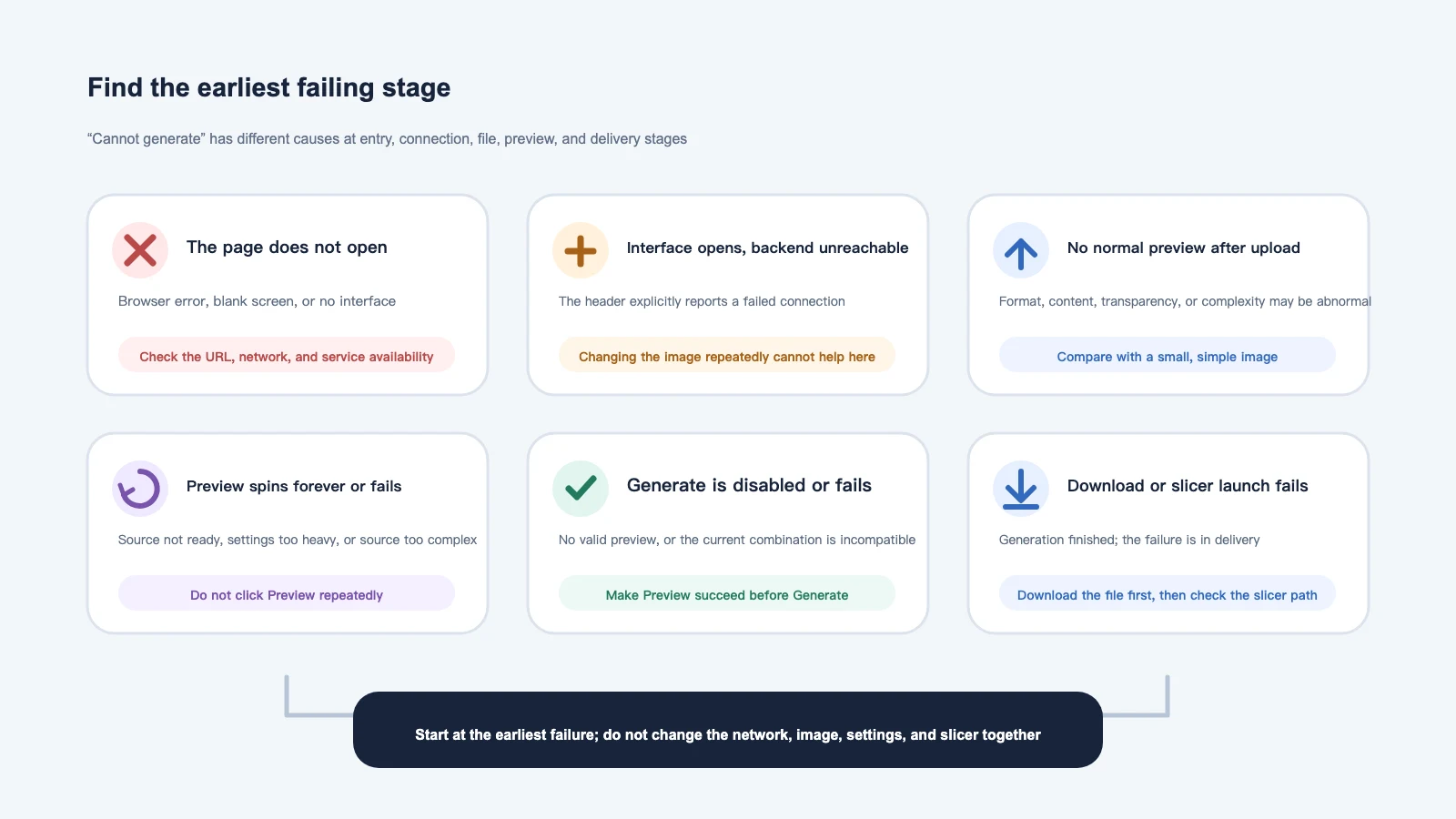
Before troubleshooting, avoid these four actions
- Do not click Preview or Generate repeatedly while a task is spinning.
- Do not use Clear Cache as the first response.
- Do not disguise a file by changing its extension, such as renaming unsupported data
to
.png. - Do not post private artwork, commercial files, credentials, or complete logs in a public chat.
Record the visible status, the first complete error message, and your exact steps. One controlled minimal test is usually more useful than many uncontrolled retries.
Follow this fixed six-step order
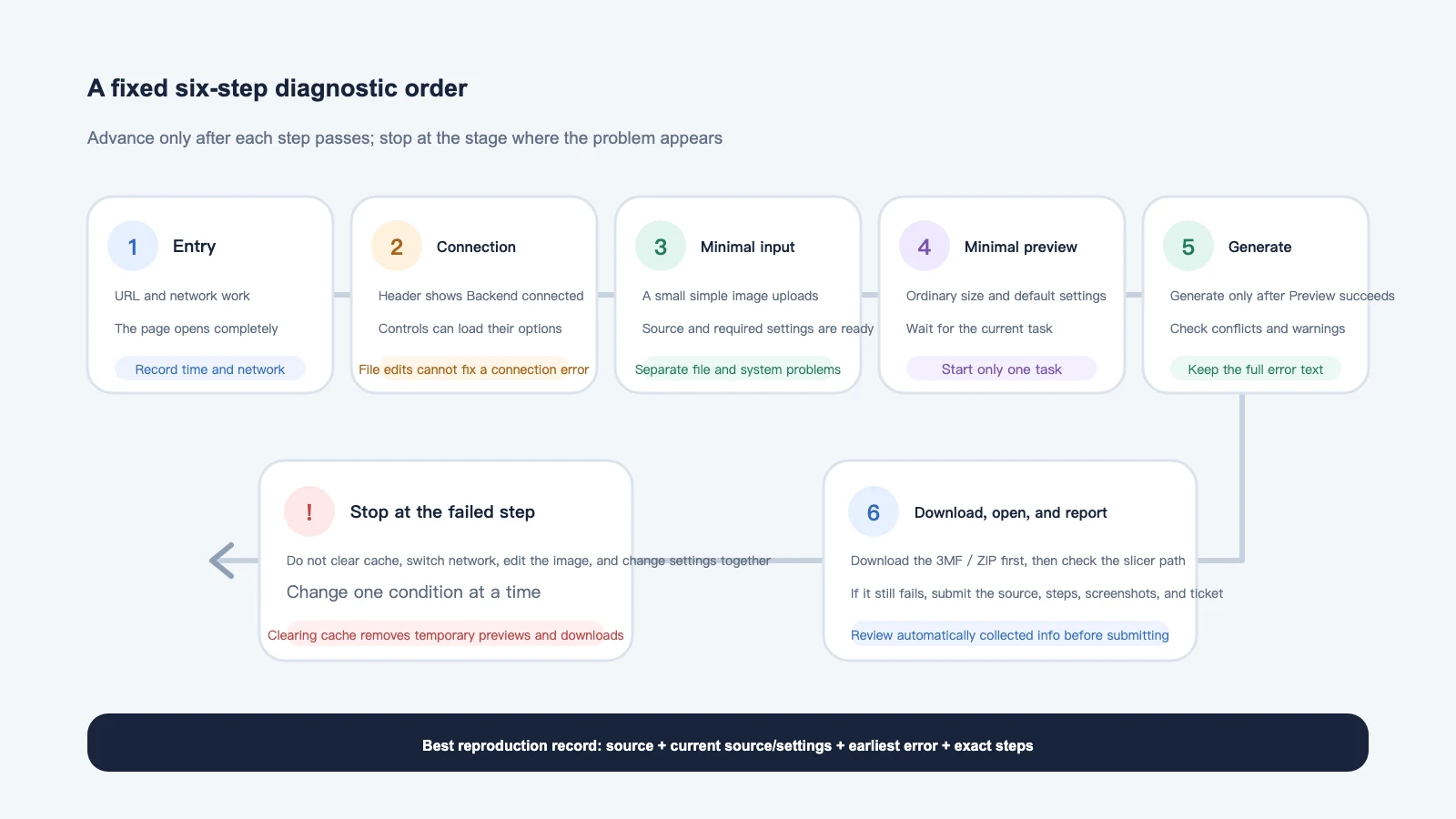
Step 1: does the page open completely?
If the browser shows an error, a blank page, or never displays the Lumina Studio interface, do not inspect the image or generation settings yet. The failure is still at the entry stage.
Check:
- that you are using the current official entry point, not an old bookmark, temporary chat link, or local development address;
- whether a normal refresh produces the same result;
- whether another device or network can open the same entry point at the same time;
- the time, region, and network type when the failure occurred.
If only one device fails, inspect that device's browser, extensions, proxy, or network. If several devices and networks fail together, the service or route is more likely involved. Do not label it an image, DNS, or account problem without a comparison.
Step 2: check the connection status in the header
A short Checking backend... state after opening is normal. It should then change to Backend connected.
If it remains Backend unreachable:
- online users should record the time, network, and page state, then retry later or report the issue;
- local users should restart Lumina Studio through the normal launcher and reopen the page;
- do not keep changing images, archives, or generation settings, because those cannot repair a failed backend connection.
Seeing the interface does not prove that the service responsible for upload, Preview, and Generate is available. Restore the connection before continuing.
Step 3: separate a file problem from a system problem
Prepare a small, simple JPG or PNG and use a Material Archive or LUT that has worked before. Disable Batch generation, Large Format Mode, and optional structures so that only the basic conversion remains.
Confirm that:
- the image really finished uploading, rather than only displaying a filename;
- the correct Source Type and required archive, brand, or LUT are selected;
- image dimensions, content, and PNG transparency are valid;
- an SVG does not depend on missing fonts, masks, filters, canvas bounds, or excessive path complexity.
If the minimal image previews correctly but the original does not, focus on the original file or its settings. If neither works, continue checking connection, source, and application state. For SVG-specific steps, see How Do I Fix SVG Upload Failures, White Backgrounds, Holes, or Missing Detail?.
Step 4: make one minimal Preview succeed
Use an ordinary finished size and default settings. Start one Preview task, then wait for it to complete or show an error.
If Preview spins or fails:
- confirm that the header still says Backend connected;
- confirm that the image and colour source are ready;
- disable Large Format, Batch, Puzzle, and other optional features;
- compare with one small, simple image;
- keep the first complete error message.
When the simple task succeeds, restore the original image, size, and advanced options one condition at a time. The first condition that brings the failure back is the most useful diagnostic clue.
Step 5: Generate is disabled or fails
Lumina requires a valid Preview result before it can generate final files. A disabled Generate button usually means that the image, source, required settings, or current Preview is not ready—not that the button itself is broken.
Check in this order:
- image and colour source are both ready;
- the current settings completed a successful Preview;
- you created a new Preview after changing the image, source, or a key setting;
- the selected mode, archive, optional feature, and export method are compatible;
- finished size, Bed Size, or Large Format settings do not show a blocking warning.
If Preview succeeds but Generate fails, record the complete error before clearing any state. Disable optional features, then run a minimal Generate with the same small test image.
Step 6: separate download failure from slicer failure
After Generate completes, download the entire 3MF or ZIP before diagnosing the next stage.
- The download is missing or no longer works: the temporary output may have expired; create a new Preview and Generate result.
- Lumina cannot launch the slicer automatically: confirm the file was downloaded, then check Slicer Software and the configured application path.
- The slicer opens but materials are wrong: inspect object, project-filament, physical-spool, and machine-slot mapping.
- Large Format or Batch output: fully extract the ZIP and work from its contents; do not rely on the archive preview.
For mapping, see Open a Lumina 3MF in Your Slicer. If the file opens but the three previews differ, see Why Do Lumina Preview, Slicer Preview, and the Physical Print Look Different?. For detection, macOS application paths, and manual opening, see What If Lumina Cannot Find the Slicer or Open the 3MF?.
When should I use Clear Cache?
Use Clear Cache only when a local installation's temporary session, Preview, or download state is abnormal and a restart plus minimal test still does not recover it. It is not a network diagnostic and cannot repair an invalid source image or incompatible settings.
Before clearing, understand that:
- temporary Preview and download links can stop working;
- you may need to upload, Preview, and Generate again;
- cache clearing does not correct archives, LUTs, slicer settings, or material mapping;
- normal user Material Archives and configuration libraries should not be removed by clearing temporary cache.
If you are unsure whether cache is involved, complete the minimal comparison first and preserve the error information.
What do common error messages mean?
You do not need to memorise an error number. Identify the category expressed by the complete message.
| Meaning | Common cause | First response |
|---|---|---|
| Invalid input or missing required information | No source selected, incomplete setting combination, or invalid file content | Return to the minimal input and complete each requirement |
| Unsupported file | Content and extension do not match, or the workflow does not support the file | Export a real JPG, PNG, SVG, WebP, or HEIC |
| File too large | Upload size or processing complexity exceeds a limit | Test a reduced copy without overwriting the source |
| File or session not found | Temporary output expired, the page refreshed, or the session ended | Upload or select the input again, then Preview and Generate |
| Too many current tasks | Repeated clicks or another task is still running | Stop clicking, wait, then run one task |
| Service unavailable or timeout | Backend, route, or worker problem | Record the time and earliest error, then retry or report |
“It failed” or an isolated error number is not enough. The complete message, failure stage, and reproduction steps are far more useful.
A controlled minimal reproduction
Use this fixed baseline:
- the current official entry point or normal local launcher;
- a small, simple JPG or PNG that opens normally;
- a Material Archive or LUT already known to work;
- an ordinary finished size and default settings;
- Batch, Large Format, and optional structures disabled;
- one Preview, followed by one Generate only after Preview succeeds.
After the baseline passes, restore the original image, source, size, and advanced options one by one. The first condition that reproduces the problem defines the next area to inspect.
What should I preserve before reporting?
Prepare:
- Lumina Studio version and whether you use the online or local edition;
- exact time, region, and network type;
- the stage where the workflow stopped;
- the first complete error message;
- exact steps beginning with opening Lumina;
- the original input or a privacy-safe minimal reproduction;
- Source Type, archive or LUT, Modeling Mode, size, and key options;
- only the screenshots necessary to show the failure;
- the original 3MF or ZIP if Generate completed.
Before submitting Report a bug, expand Automatically collected info and review it. The report can include page state, current selections, recent operations, and diagnostic logs; screenshots are optional. Do not attach passwords, API keys, private chat records, or unrelated commercial files. If online submission fails repeatedly, copy the backup report and send it through an official support channel.
Common questions
How long is “Checking backend...” normal?
A short check after opening is expected. If it does not change for a long time, or becomes Backend unreachable, diagnose the connection before editing the image or settings.
Generate stays disabled. Is this an account permission problem?
Usually not. Confirm the image, colour source, and required options are ready and that the current settings have a successful Preview. A key change can invalidate an older Preview and require a new one.
Why can one network open Lumina while another cannot?
That comparison makes the source image an unlikely first cause. Record both networks, the time, and region so maintainers can inspect the entry point, route, or service. Avoid changing DNS, proxy, browser, and operating-system settings all at once.
Will Clear Cache delete my Material Archives?
Normal cache clearing targets temporary sessions, previews, and outputs; it should not delete the user Material Library or configuration library. Current temporary links may expire, so you will need to Generate again.
Why did a download link stop working after a refresh?
Preview and generation outputs can belong to a temporary session. Refreshing, switching sessions, timing out, or clearing cache can invalidate an old link. Select or upload the input again, then Preview and Generate.
Must I upload my original artwork with a bug report?
No. Prefer the smallest file that still reproduces the issue. If the source contains private, commercial, or unreleased material, create a safe example with the same format and failure characteristics and describe what differs from the original.
Content licence
The original text, tables, and diagrams on this page are covered by the Wiki's CC BY-NC-SA 4.0 content licence, unless otherwise stated. Rights in Lumina Studio, third-party software, browsers, slicers, device names, and trademarks remain with their respective owners.
This page provides a general diagnostic sequence. Follow the official guidance for the relevant platform, printer, material, and security system when those areas are involved.
Submit feedback
Your feedback is sent privately to the Wiki maintainers and is not displayed publicly on this page.