This article was prepared with AI assistance based on an analysis of the current Lumina Studio source code, existing Wiki content, and relevant workflows. It has been checked against the current version, but omissions or details that become outdated may remain as the software evolves. If you find an error or have a clearer explanation, example, or suggestion, please leave a comment on this page or propose an edit on GitHub.
Preview, Generate, and Export
Actions separates inspection, model generation, and delivery for the same parameter set. Previewing first catches image, colour, and geometry issues before a printable 3MF is created.
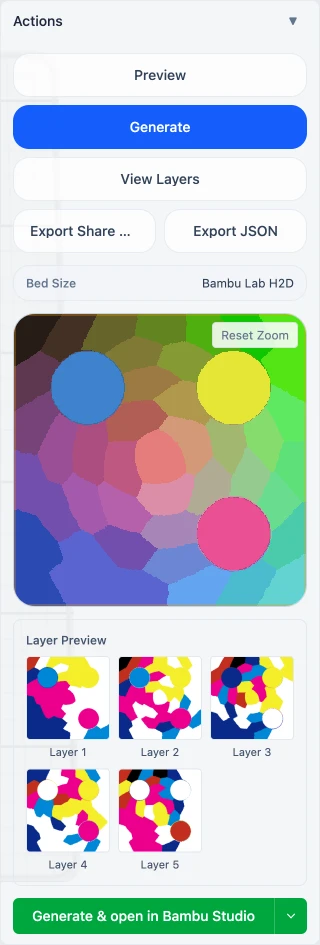
Preview
Preview reads the current image, colour source, and settings and creates a new preview session. A successful run supplies:
- the matched 2D result;
- the model used by the 3D viewer;
- palette, layer-image, and Color Workstation data;
- session state required by Generate.
The button is disabled until both an image and a complete colour source are available. Re-preview after changing a setting that affects output; layer images from an old session are not reused for the new one.
Generate
Generate becomes available only after a valid preview. It turns the active parameter set into a printable 3MF. Puzzle and Large Format use their own generation paths. A previously downloaded file never changes when settings are edited.
The bottom primary button can combine generation and opening a slicer. Generation still completes before the artifact is handed to the detected application.
View Layers
View Layers creates one image for each optical layer in the current session. Thumbnails open at a larger size. Hover inspection reads the surface colour and the colours at the same point in every layer. This verifies the recipe; it does not prove that the slicer has assigned the intended physical filaments.
Share Card and JSON
- Export Share Card packages a cover image with a reproducible Lumina recipe.
- Export JSON saves the recipe sidecar alone for inspection, automation, or version control.
Both need an image and completed preview. They contain Lumina parameters rather than sliced G-code. See Share Card and JSON.
Bed Size comes from the selected printer in Settings and is used for preview scale and bounds. Confirm the real printer, nozzle, and plate again in the slicer.
Submit feedback
Your feedback is sent privately to the Wiki maintainers and is not displayed publicly on this page.