This article was prepared with AI assistance based on an analysis of the current Lumina Studio source code, existing Wiki content, and relevant workflows. It has been checked against the current version, but omissions or details that become outdated may remain as the software evolves. If you find an error or have a clearer explanation, example, or suggestion, please leave a comment on this page or propose an edit on GitHub.
Modeling Mode
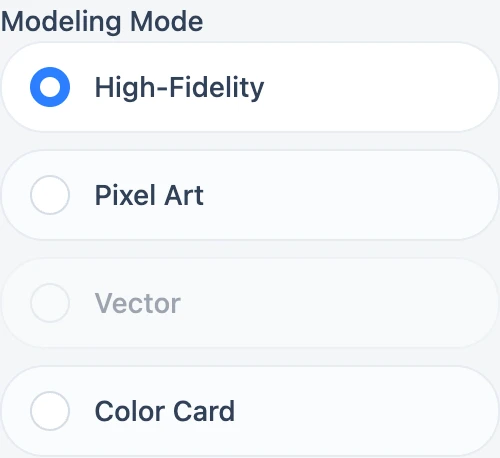
Modeling Mode determines how Lumina Studio turns the source artwork into a colour grid and model geometry. It is separate from Source Type: the source defines available recipes, while the modeling mode defines how artwork and edges are sampled.
High-Fidelity
Raster images are processed at roughly 10 px/mm, receive edge-preserving treatment, and are clustered according to Quantize Colors before matching. This suits photographs, illustrations, gradients, and ordinary detailed artwork.
Pixel Art
The processing scale follows nozzle width and nearest-neighbour resizing preserves hard edges. When the visible source palette fits the colour budget, it is retained; otherwise raw pixels are quantized without the High-Fidelity smoothing stage.
Vector
Vector is available only for SVG input. The store rejects attempts to force a raster file into Vector mode. Shapes, fills, and strokes drive geometry directly.
Color Card
Color Card produces validation patches from the current recipes and follows a dedicated generation path rather than ordinary image detail.
There is no universal “best” choice between High-Fidelity and Pixel Art. Compare at the same size and nozzle using Bitmap vs vector and Choosing an image mode.
Changing the mode invalidates the old 3MF and download.
Submit feedback
Your feedback is sent privately to the Wiki maintainers and is not displayed publicly on this page.