This article was prepared with AI assistance based on an analysis of the current Lumina Studio source code, existing Wiki content, and relevant workflows. It has been checked against the current version, but omissions or details that become outdated may remain as the software evolves. If you find an error or have a clearer explanation, example, or suggestion, please leave a comment on this page or propose an edit on GitHub.
LUT Library
LUT Library lists every traditional lookup table available to the active backend: bundled presets, user-imported files, and revisions installed from the cloud catalog.
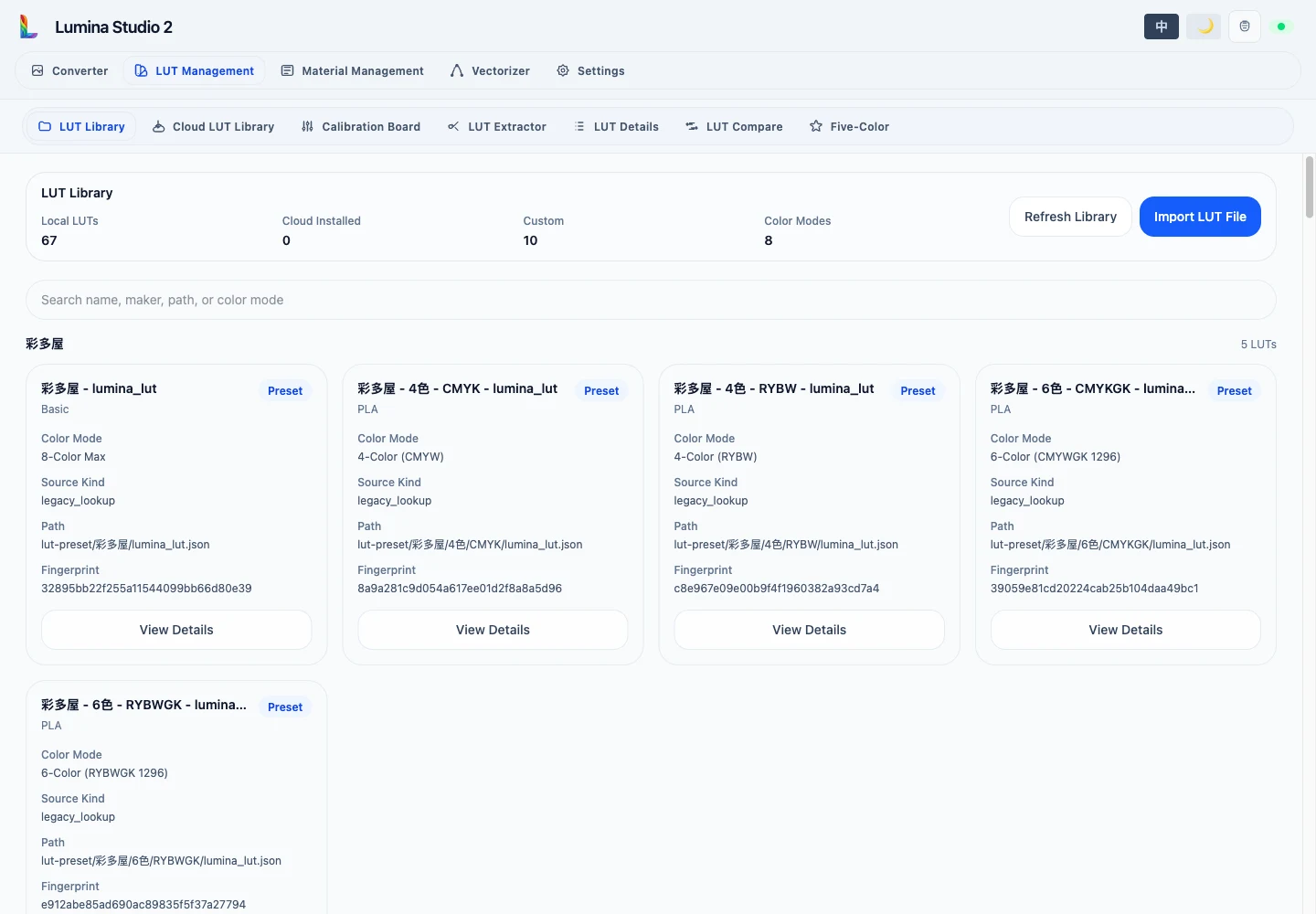
Card fields
Each card shows the LUT name, material type, colour mode, source kind, relative path, content fingerprint, and origin: Preset, Custom, or Cloud.
The fingerprint identifies the file contents. LUTs with the same name but different data have different fingerprints. The displayed path is a public relative reference, not a machine-specific absolute path.
Search
Search checks name, manufacturer, material, colour mode, source kind, path, and aliases. With multiple space-separated terms, every term must match at least one field.
Import
Import LUT File accepts .npy, .json, .npz, and .msgpack. A successful upload appears in the Custom section after
the catalog refreshes. Upload success does not guarantee complete metadata; open the LUT and verify its colour mode,
palette, layer order, and base channel.
Refresh Local Library rescans backend storage without re-downloading the cloud catalog. View Details carries the selected item directly to LUT Details.
Related pages:
Submit feedback
Your feedback is sent privately to the Wiki maintainers and is not displayed publicly on this page.