This article was prepared with AI assistance based on an analysis of the current Lumina Studio source code, existing Wiki content, and relevant workflows. It has been checked against the current version, but omissions or details that become outdated may remain as the software evolves. If you find an error or have a clearer explanation, example, or suggestion, please leave a comment on this page or propose an edit on GitHub.
Material Library
The Material Library stores materials measured by Lumina. An archive contains both a display colour and the fitted parameters used for layer-stack prediction, so an ordinary colour swatch cannot replace it.
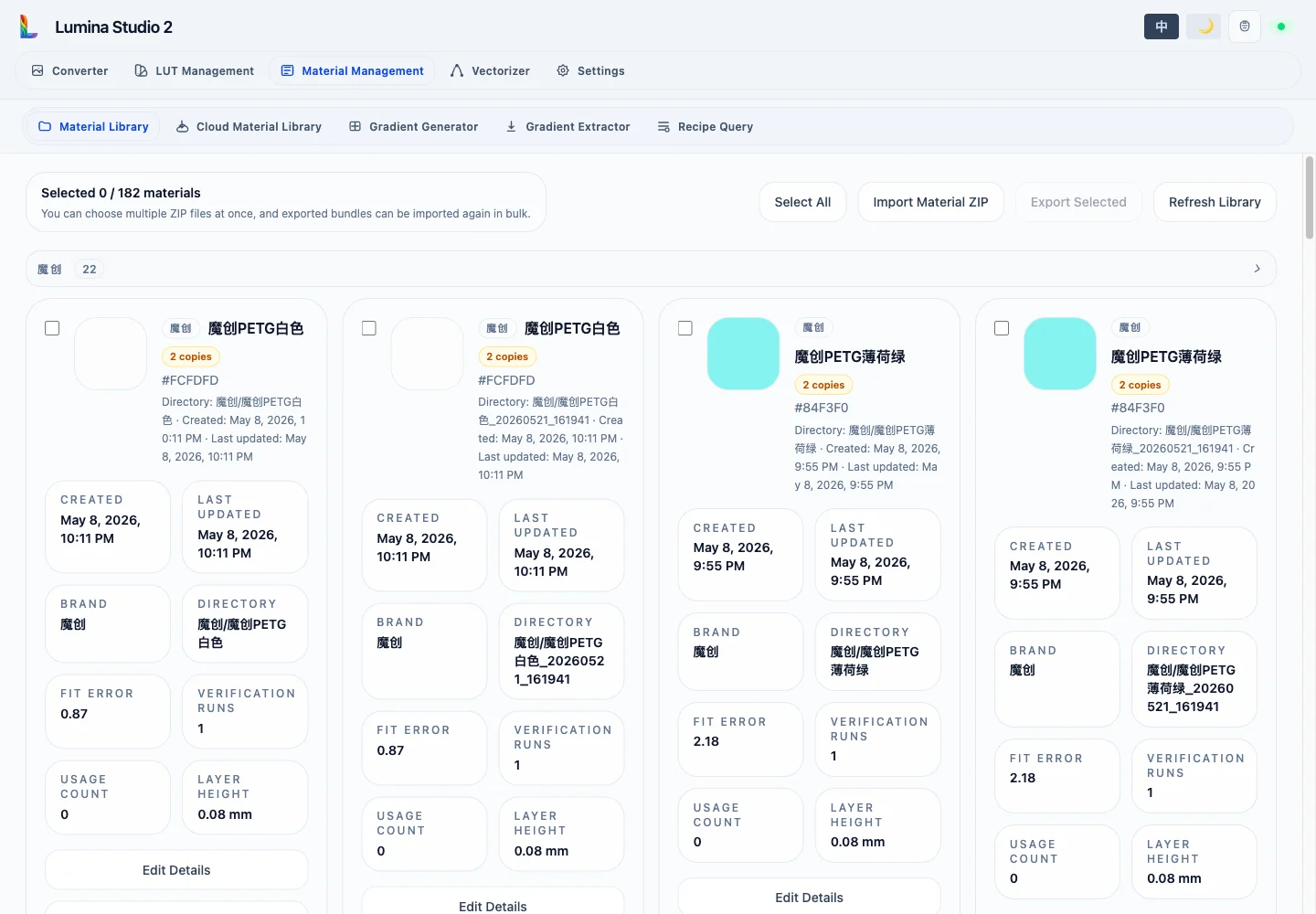
Brand groups and duplicate names
Materials are collapsed by brand. Archives without a brand appear under Unassigned. Select a brand header to expand or collapse it.
“N copies” means the brand and display name match while the directory or measured data differs. Lumina does not merge these entries by name; the directory name is the stable identity of each archive.
An archive installed from the official cloud channel carries an Official badge. The badge identifies its origin; it does not guarantee that the archive is a better fit for your printer and capture conditions than your own measurements.
Card fields
- Display colour: the estimated RGB from the gradient-card fit. It can be overridden in the edit dialog.
- Created / Last Updated: the first and most recent archive write time.
- Brand / Directory: grouping information and the archive's stable identifier.
- Fit Error: mean ΔE for the fit. It is a diagnostic, not an absolute ranking across materials.
- Verification Runs: valid measurements incorporated into the archive.
- Usage Count: how often colour modes actually used this archive, plus the last-use time when recorded.
- Layer Height: the calibration layer height used to produce and fit the gradient cards.
Select All changes only the current selection. Refresh Library rereads backend storage without recalibrating anything.
See Material Import and Export for migration and backup. See Editing and Re-Verification for Edit Details, Re-Verify, Verification History, and Delete Material.
Related pages:
Submit feedback
Your feedback is sent privately to the Wiki maintainers and is not displayed publicly on this page.