This article was prepared with AI assistance based on an analysis of the current Lumina Studio source code, existing Wiki content, and relevant workflows. It has been checked against the current version, but omissions or details that become outdated may remain as the software evolves. If you find an error or have a clearer explanation, example, or suggestion, please leave a comment on this page or propose an edit on GitHub.
Custom Recipes
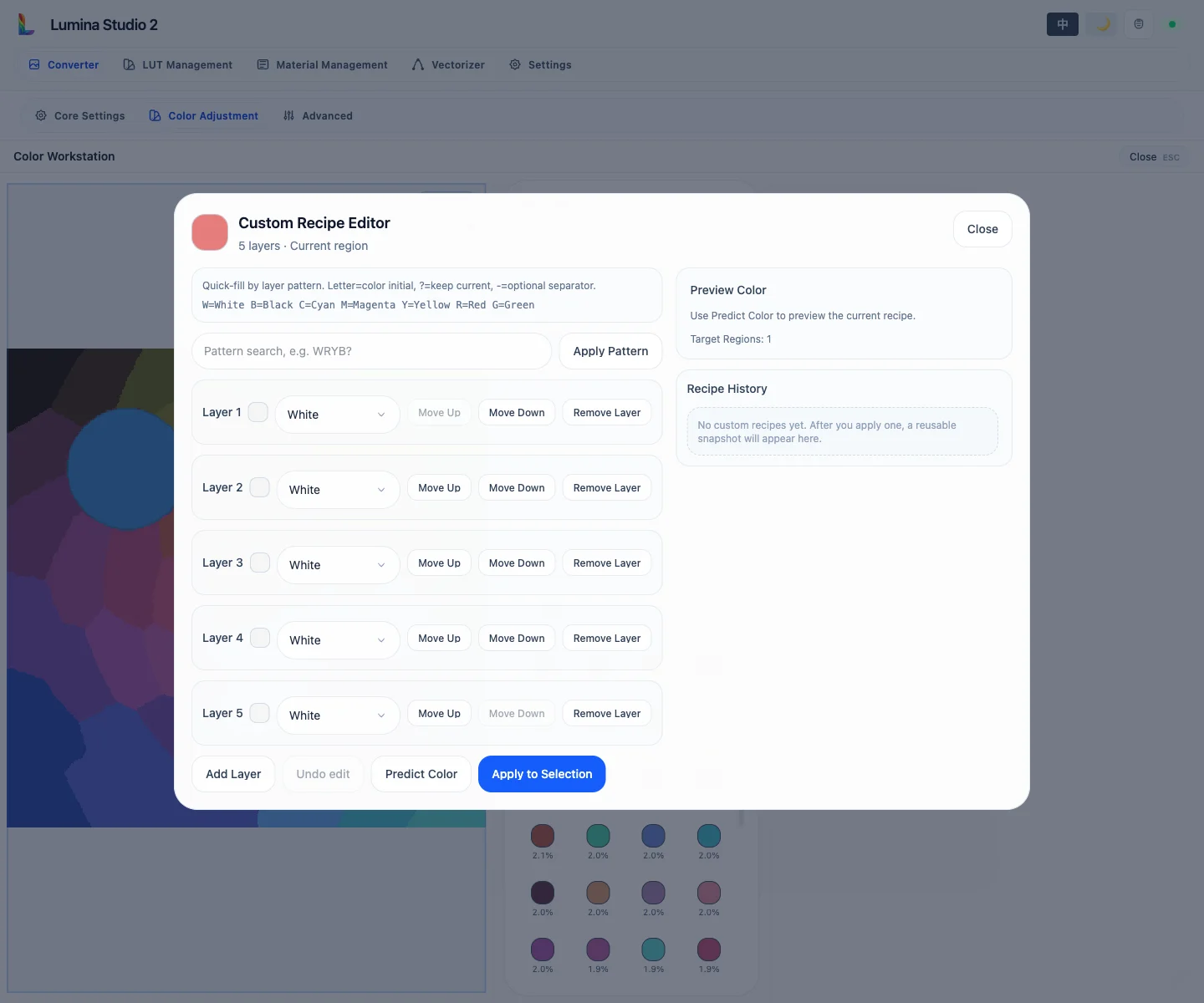
Custom Recipe assigns a colour to every optical layer of the selected spatial region. Select at least one region in the 2D preview, then open Custom Recipe.
Editing the stack
Layers follow the active LUT's recorded order. Each layer can be recoloured, added, removed, or moved. Pattern Search supports compact entry:
- a letter uses the first letter of a colour's English name, such as
W,B,C,M,Y,R, orG; ?keeps the current layer;-is an optional separator.
Letters are resolved against the active palette. If a letter is not unique, inspect every resulting swatch instead of trusting the shorthand alone.
Predict Color
Predict Color uses the forward model bundled with the active LUT and reports RGB and Lab. Manual editing and application still work without a forward model, but the editor explains that a reliable prediction is unavailable.
Prediction does not include variation from filament batches, build-plate texture, lighting, or camera white balance.
Apply to Selection
Apply to Selection stores the stack for one or more selected regions and rebuilds the preview. If the recipe contains more layers than the current preview, the whole image must be rendered with the higher optical-layer count; the editor asks for confirmation a second time.
A recipe can refer to existing LUT materials and virtual materials introduced by the edit. Those declarations travel with the regional override into 3MF generation so that a colour visible in preview is not lost as a missing object.
Every successful application creates a history snapshot that can be reused on another region. Undo Edit affects only changes not yet applied inside the editor; Undo in the workstation toolbar handles confirmed replacements.
Submit feedback
Your feedback is sent privately to the Wiki maintainers and is not displayed publicly on this page.