This article was prepared with AI assistance based on an analysis of the current Lumina Studio source code, existing Wiki content, and relevant workflows. It has been checked against the current version, but omissions or details that become outdated may remain as the software evolves. If you find an error or have a clearer explanation, example, or suggestion, please leave a comment on this page or propose an edit on GitHub.
LUT Colour Grid
After previewing with a traditional LUT, the right column loads every colour that LUT can produce. Colours used in the current image are separated from the remaining entries. Selecting a source colour adds twelve recommendations ordered by RGB distance.
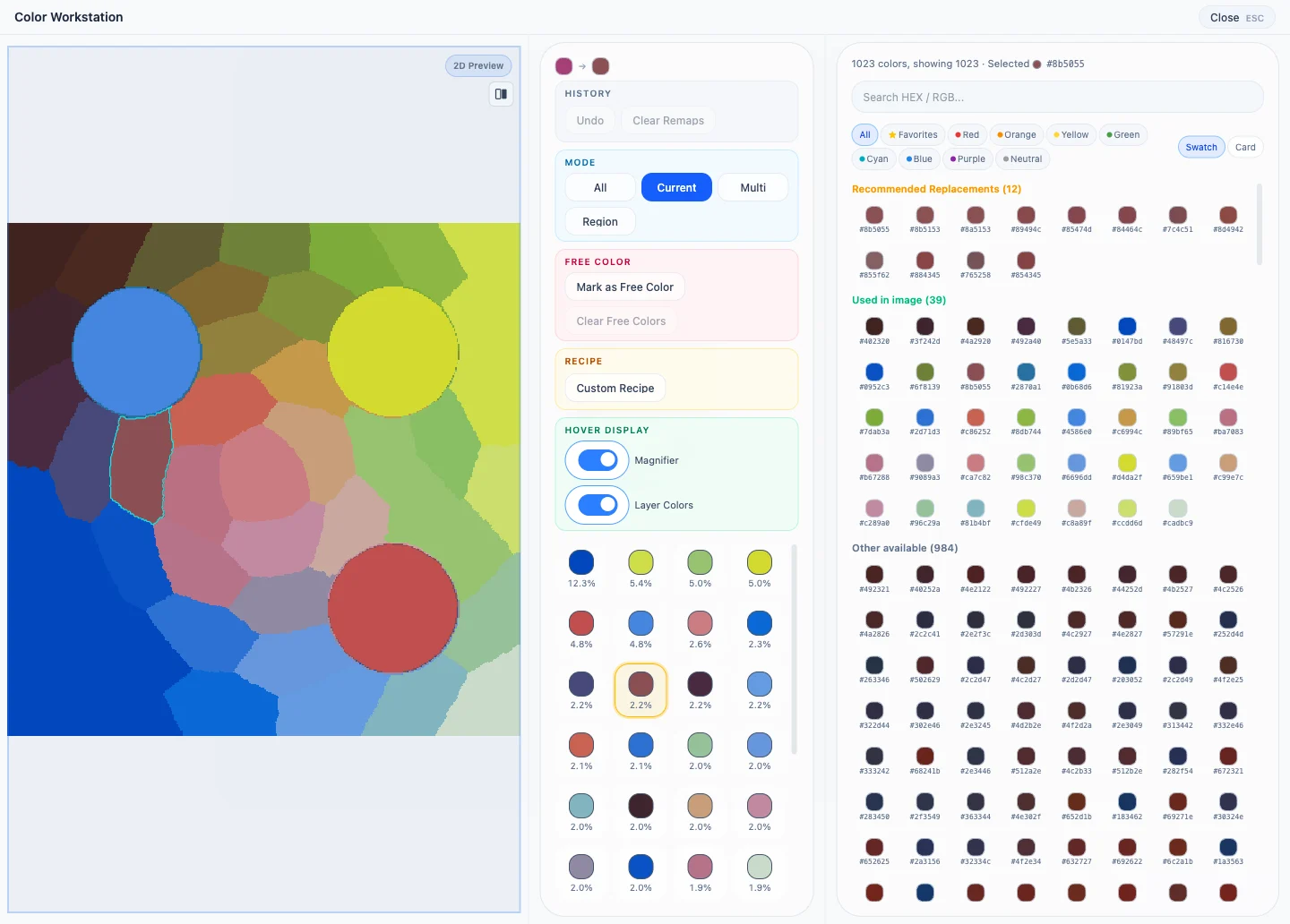
Finding a colour
The search field accepts:
- HEX, such as
#8B5055or8b50; - RGB, such as
139, 80, 85; - hue filters for red, orange, yellow, green, cyan, blue, purple, and neutral colours.
Used in Image comes from the active preview palette. Other Available contains the remaining entries from the same LUT. Recommendations are numerical neighbours, not a guarantee of the closest physical print under a particular light, build plate, or filament batch.
Favourites and display modes
Double-click a swatch to favourite or unfavourite it. Favourites are stored locally and separately for each LUT.
Compatible LUTs can switch between Swatch and Card views. Card view follows the physical page, row, column, and A/B labels recorded in the LUT. A LUT without card-layout metadata remains in Swatch view.
Confirming a replacement
Clicking a target colour creates a pending source-to-target item:
- Confirm Replace recalculates the 2D and 3D previews.
- Cancel leaves the session unchanged.
- A gradient-region source keeps its exact spatial mask instead of falling back to a whole-image HEX remap.
- Multiple colours and regions are handled in one batch.
Material archives have no fixed LUT grid and use Achievable Material Colours instead.
Submit feedback
Your feedback is sent privately to the Wiki maintainers and is not displayed publicly on this page.