This article was prepared with AI assistance based on an analysis of the current Lumina Studio source code, existing Wiki content, and relevant workflows. It has been checked against the current version, but omissions or details that become outdated may remain as the software evolves. If you find an error or have a clearer explanation, example, or suggestion, please leave a comment on this page or propose an edit on GitHub.
Selection Modes, Palette, and Free Colours
The palette contains only colours present in the active preview. The percentage below each swatch is pixel coverage for that matched colour. After selection, the header shows the quantized colour, matched colour, and replacement in order.
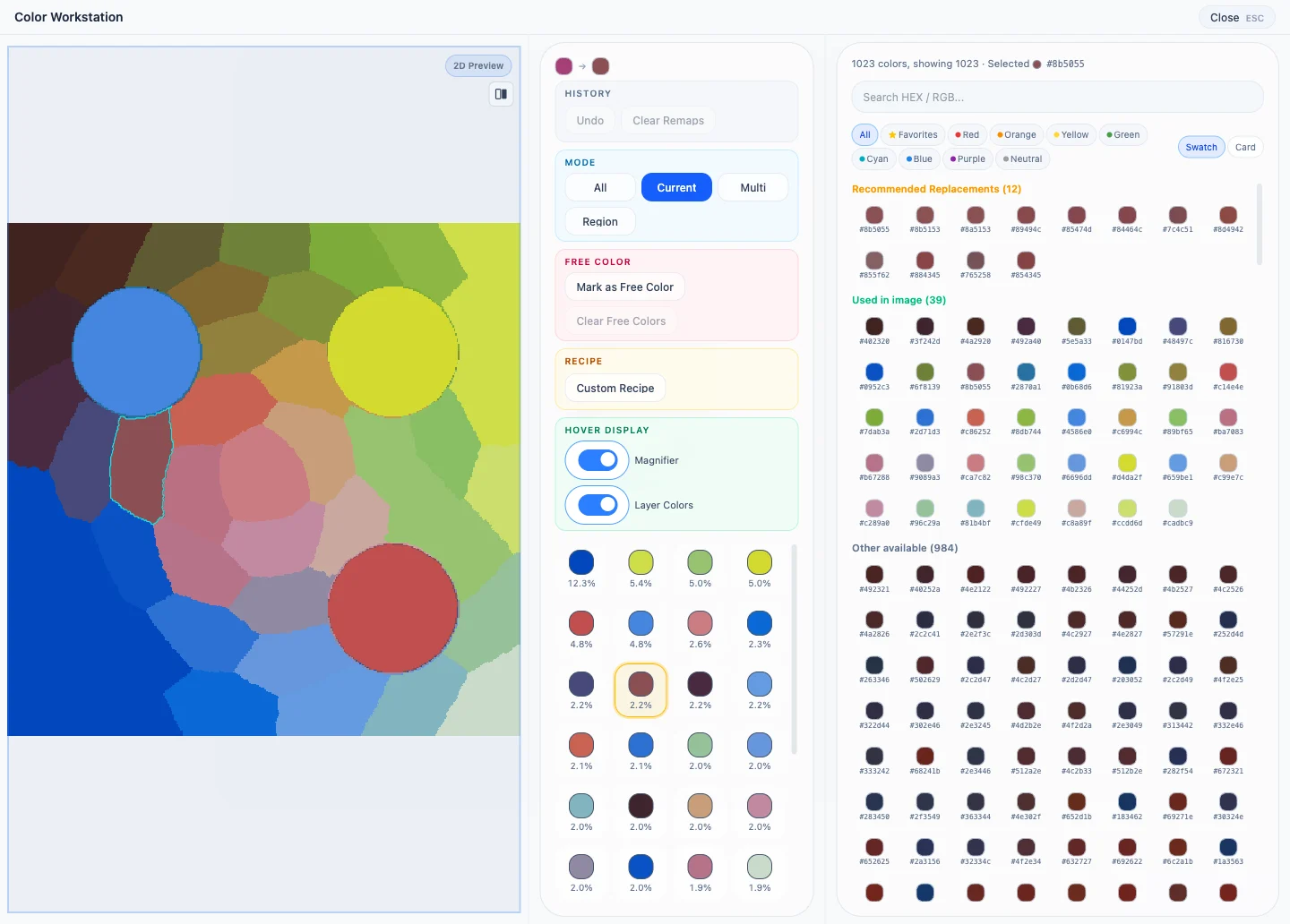
Four selection modes
| Mode | Target after clicking the 2D preview | Typical use |
|---|---|---|
| All | Every pixel of the matched colour; multiple colours can be accumulated | Replace one or more colours everywhere |
| Current | One connected region containing the clicked point | Edit one isolated graphic or colour patch |
| Multi | Add or remove connected regions one click at a time | Replace several separate regions together |
| Region | One connected region containing the clicked point | Use an explicitly spatial replacement workflow |
In the current implementation, Current and Region both use the same connected-region detector and exact regional replacement. Current is the default single-region entry; Region keeps the spatial intent explicit. Neither changes every matching HEX elsewhere in the image.
In All mode, palette swatches can also add or remove source colours. In Multi mode, clicking an already selected region removes it.
Replace, undo, and clear
Choosing a target colour creates a source-to-target confirmation first. Only Confirm Replace rebuilds the preview. Multiple colours or regions are sent as one batch so the 3D result is not rebuilt once per item.
- Undo restores the previous global remap snapshot.
- Clear Remaps clears global and regional replacements and rebuilds 2D/3D output from the original matched result.
- Cancel discards only the target colour that has not yet been confirmed.
Free Colour
Mark as Free Colour extracts every solid voxel of the selected matched colour into a standalone generated object named
like Free_FFFFFF. This lets the slicer assign or process that object independently. It does not invent or automatically
select a real filament.
Free Colour changes the structure of the generated 3MF, so Generate must be run again after marking or clearing it. It does not recolour the current 2D preview.
Submit feedback
Your feedback is sent privately to the Wiki maintainers and is not displayed publicly on this page.