This article was prepared with AI assistance based on an analysis of the current Lumina Studio source code, existing Wiki content, and relevant workflows. It has been checked against the current version, but omissions or details that become outdated may remain as the software evolves. If you find an error or have a clearer explanation, example, or suggestion, please leave a comment on this page or propose an edit on GitHub.
2D Preview and Hover Inspection
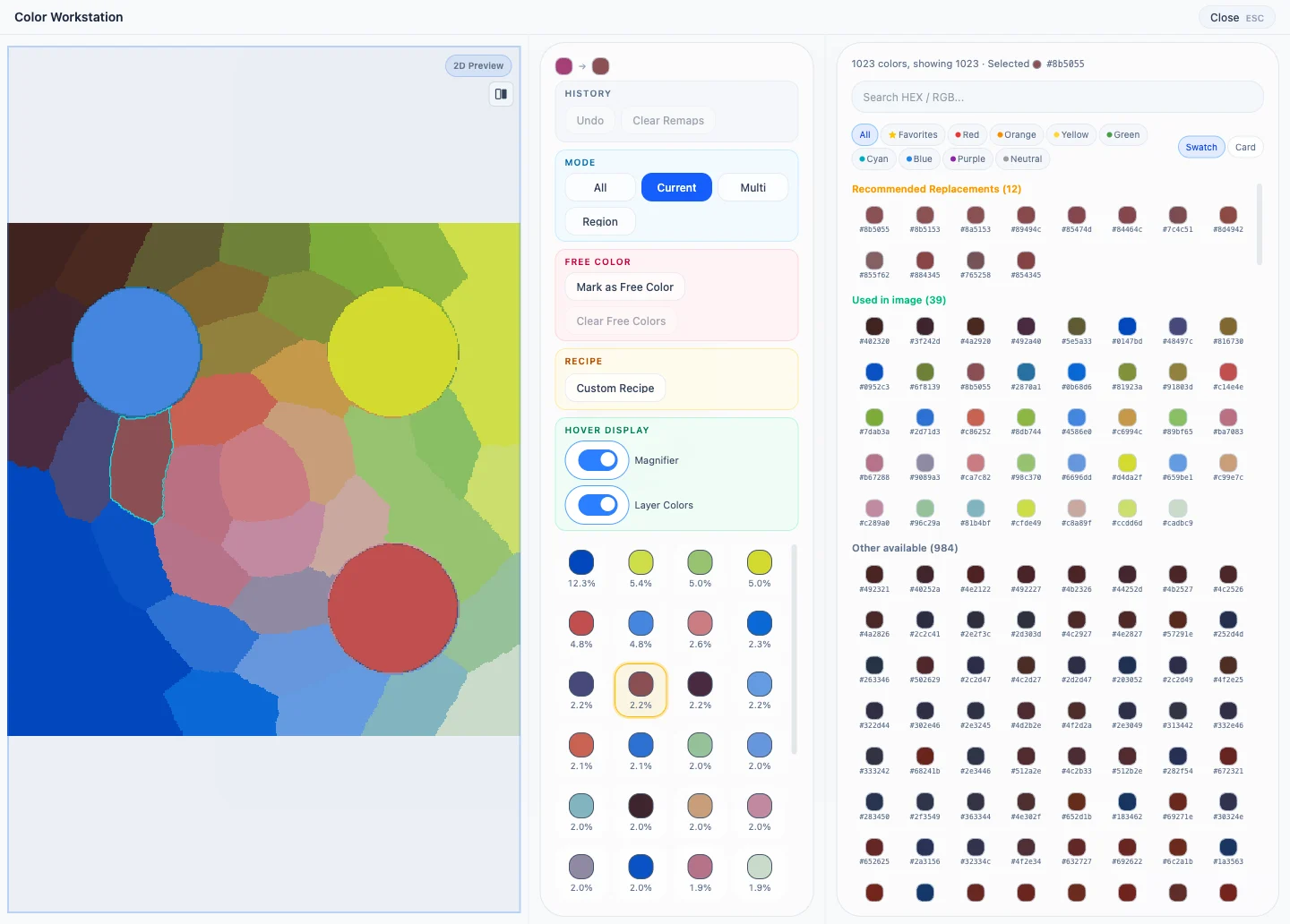
The 2D preview is the colour result used by the active modelling session. It also drives colour selection, connected-region detection, and layer inspection; it is not merely a thumbnail.
Inspecting detail
- Use the wheel or trackpad to zoom from
50%to1000%. - Drag with the right mouse button to pan; double-click to reset the view.
- Hold the comparison button, or hold
Shiftoutside an input, to show the uploaded original. - Releasing the button or
Shift, or moving focus away from the window, restores the processed result.
Pixel-crisp rendering keeps actual preview boundaries visible at high zoom instead of smoothing them away.
Hover inspector
Hovering over the image can show:
- the pixel coordinate;
- predicted surface colour;
- the colour at the same point in every optical layer;
- either the magnifier or layer data when the other display toggle is off.
Layer images are loaded only when first needed. Transparent pixels and layers with no material are not assigned a fake colour. These are Lumina recipe layers, not proof of the slicer's final filament-slot assignment.
Cyan outlines
Clicks follow the active selection mode. Single- and multi-region modes send the real pixel coordinate to connected-component detection; All highlights the selected matched colours across the image.
When a selection originates from one gradient region, the workstation uses the exact spatial mask returned by the backend. It does not outline every other pixel with the same HEX value, preventing a local gradient band from looking like a whole-image selection.
Submit feedback
Your feedback is sent privately to the Wiki maintainers and is not displayed publicly on this page.