This article was prepared with AI assistance based on the Lumina Studio source code and workflow. If you find an error or have a clearer explanation, please comment on this page or propose an edit on GitHub.
Interface scale
The desktop Interface scale setting changes the displayed size of text, buttons and panels. It does not change the physical dimensions of a model or exported 3MF.
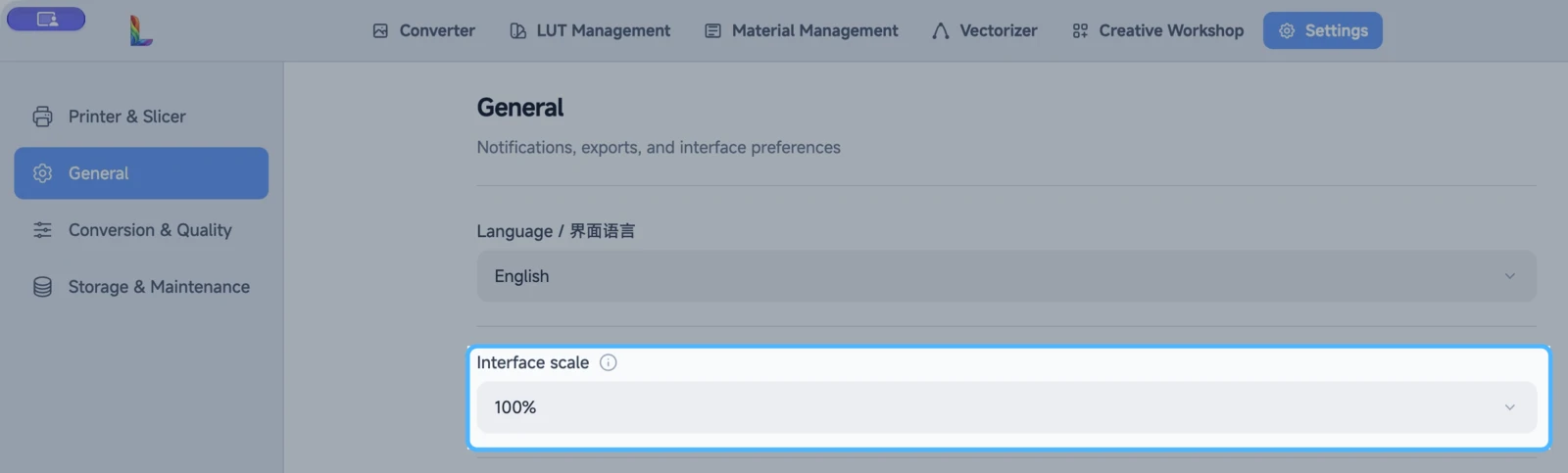
Open Settings → General and select 80%, 90%, 100%, 110%, 125%, 150% or 175% under Interface scale. At 100%, the interface follows your operating system's display scale. Choose a larger value if the interface is too small, or a smaller one if it is too large. The selection is saved for the next desktop launch.
You can also change scale one step at a time with Ctrl plus + or - on Windows and Linux. Press Ctrl + 0 to return
to 100%. On macOS, use Command in place of Ctrl.
This setting appears only in desktop versions that support it. In a browser, use the browser's own page zoom instead; browser zoom and the desktop setting are stored separately.
Submit feedback
Your feedback is sent privately to the Wiki maintainers and is not displayed publicly on this page.