This article was prepared with AI assistance based on an analysis of the current Lumina Studio source code, existing Wiki content, and relevant workflows. It has been checked against the current version, but omissions or details that become outdated may remain as the software evolves. If you find an error or have a clearer explanation, example, or suggestion, please leave a comment on this page or propose an edit on GitHub.
Image Vectorizer
Image Vectorizer converts a PNG, JPEG, WebP, or BMP raster image into an SVG made of closed paths and a limited color palette. It works especially well with icons, pixel art, flat-color illustrations, and images with clear boundaries. Photographs can also be converted, but usually produce more colors and shapes.
Basic workflow
- Select a supported raster image in the upload area.
- Keep the defaults for the first pass and click Start Vectorization.
- Pan and zoom the original and SVG previews together to inspect contours, thin lines, and color boundaries.
- Choose Download SVG to save the file, or Send to Image Converter to continue building a 3D model.
While processing, the button changes to Vectorizing…. The current frontend request can be canceled. Selecting another image clears the previous result.
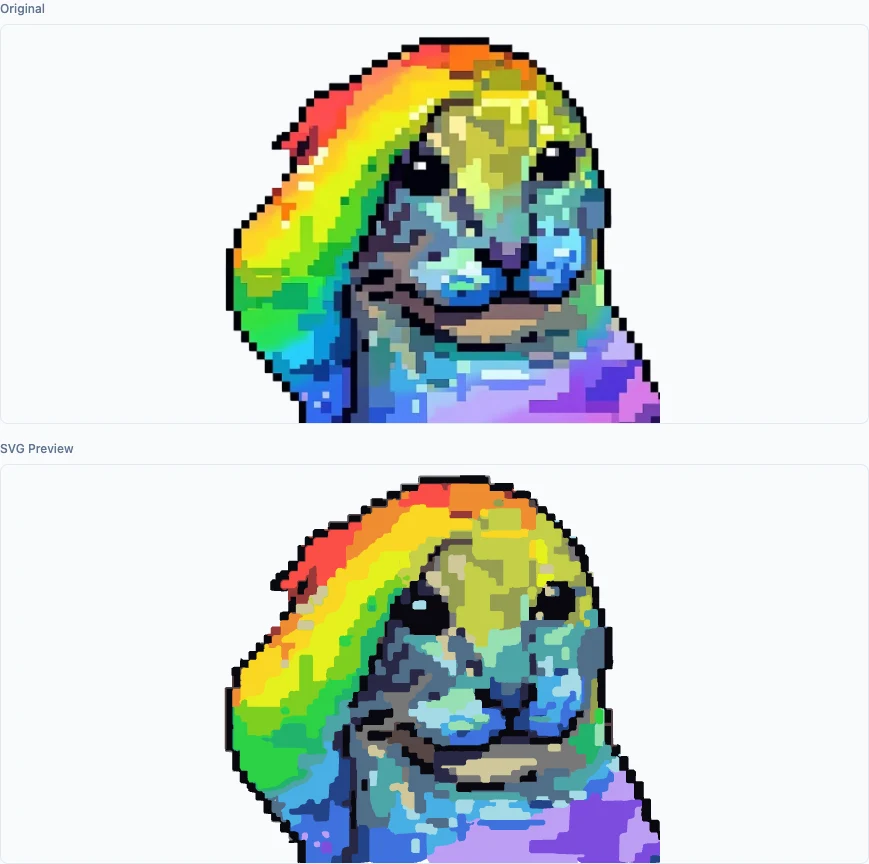
Current processing pipeline
The current implementation runs image scaling and Mean Shift smoothing, color segmentation, boundary extraction, contour assembly, Bézier fitting, contour tracing, and SVG output in sequence. Each control in the panel targets one of these stages; these are not merely post-processing filters.
The result summary reports:
- Shapes: the number of paths retained in the final SVG;
- Colors: the palette size actually used after automatic detection or manual selection;
- Width × height: the source image dimensions in pixels;
- Palette: the first 16 colors are shown directly, with any remainder displayed as
+N.

Shape count is not a quality score. More shapes usually retain more small regions, but also make the SVG more complex. Judge the result by comparing the contours and colors rather than targeting a particular count.
Download or continue

Send to Image Converter reads the generated SVG, loads it as a vector source in Image Converter, and switches to the Converter tab. Lumina marks the file as an Image Vectorizer result so the downstream workflow can treat it as a native SVG.
The generated file uses a temporary download URL and is currently retained for 20 minutes. Download anything you want to keep. Leaving this module also clears its current page state and preview.
Submit feedback
Your feedback is sent privately to the Wiki maintainers and is not displayed publicly on this page.